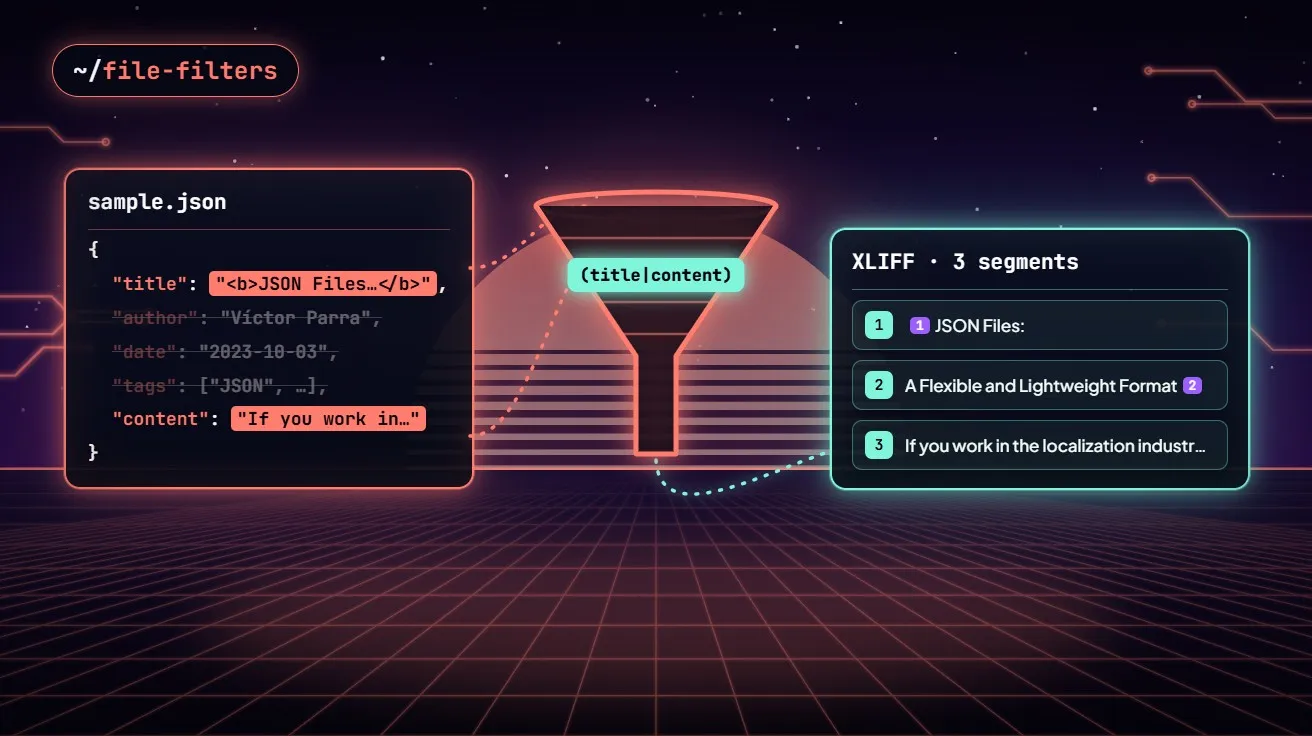
Translators only see what the file filter lets through. Get the filter wrong and they end up translating code, or never see the strings that matter.
Every localization project starts with the same question: what in this file needs translating? A JSON file mixes interface strings with keys, dates, email addresses and IDs. A Word document has styles, fields and hidden text. Translators should get the text and nothing else, and any code inside that text should be protected so nobody can break it. That is the file filter’s job, and in my experience it decides more about the quality of a project than most people think.
What a file filter does
A filter sits between the source file and the translation environment, and it works in both directions:
- It parses the file according to its format: JSON syntax, the XML tree, the package inside an Office document.
- It extracts the translatable text, following its own rules and your configuration.
- It protects inline code. Tags, placeholders and variables inside the text become inline codes, which the CAT tool shows as tags the translator can move but not edit.
- It hands the text over in a bilingual format, usually XLIFF and sometimes PO, split into sentences with SRX rules so that translation memories work at sentence level.
- It merges the translation back. The same filter puts every segment in its place and rebuilds a file with exactly the original structure.
That last step is why I save every filter configuration: the configuration that extracted the text is the one that has to merge it back.
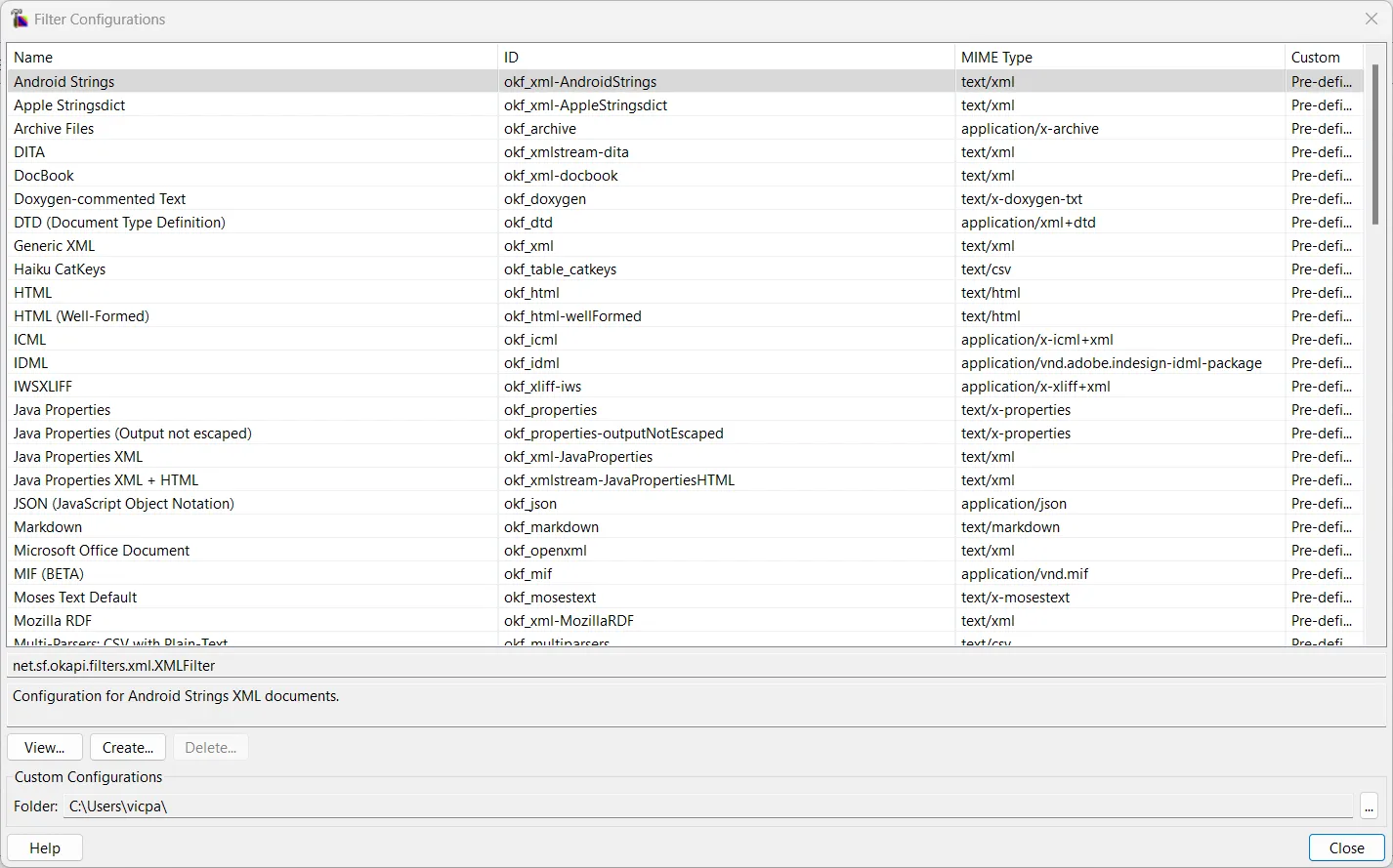
Okapi Rainbow comes with configurations for dozens of formats, and you can create your own from any of them:
Specialised filters and generic filters
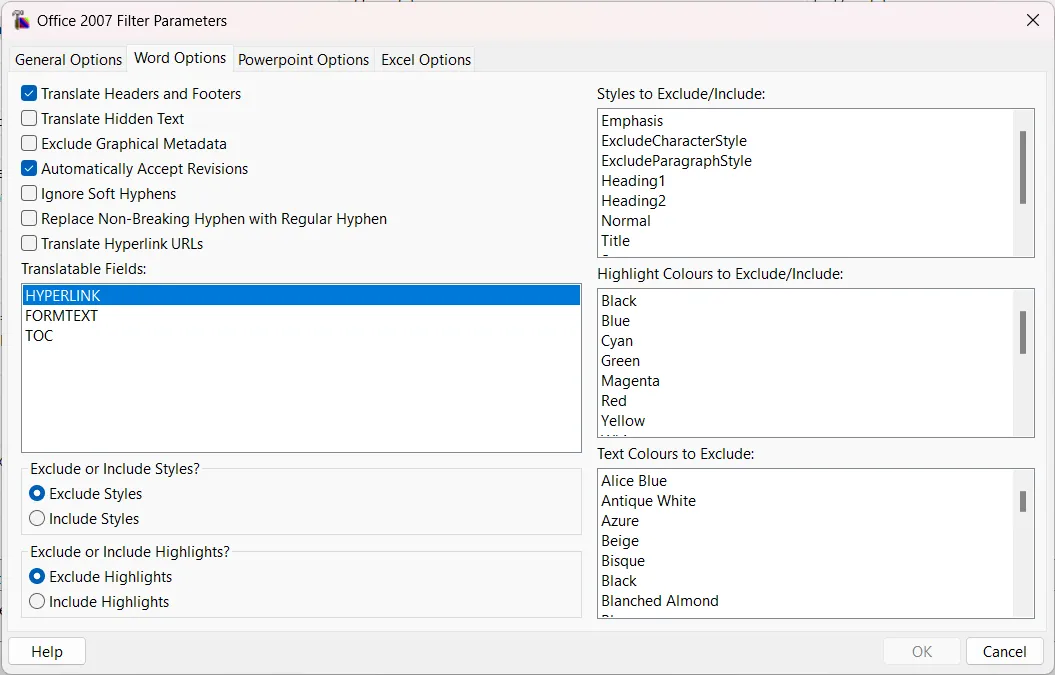
Specialised filters know one format inside out. The Microsoft Office filter knows what a header, a footnote, hidden text or a field is, and lets you decide what happens to each of them. Office, IDML, MIF and similar formats are packages with an internal structure that nobody should parse by hand.
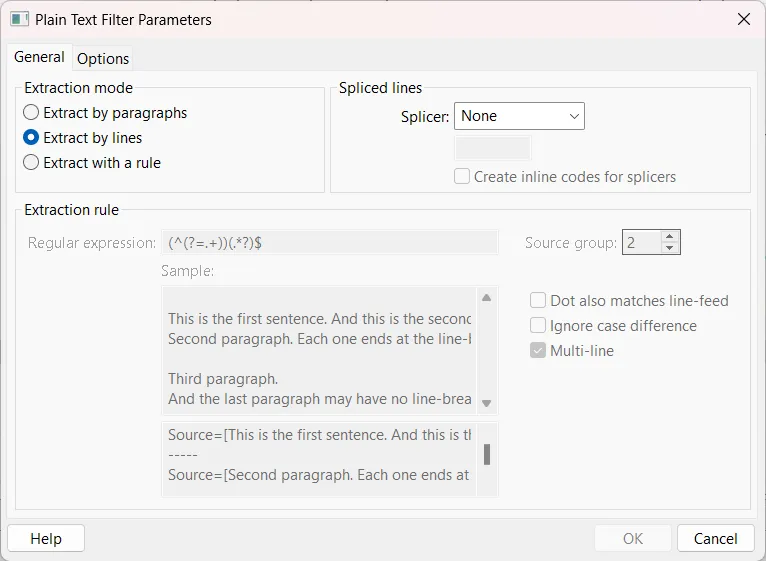
Generic filters (plain text, generic XML, regular expressions) know very little about the format and rely on the rules you give them. The plain text filter, for example, can extract by line, by paragraph or with a rule of your own:
My rule of thumb: if a dedicated filter exists for the format, start there and configure it. Reach for a generic one when there is no dedicated filter, or when the client wants a scope the dedicated filter cannot express.
Regex filters, for when nothing else fits
A regex filter extracts whatever your regular expression captures. It works on any text-based file: JSON, YAML, INI files, the custom export of some legacy system. It is the most flexible tool in the box and also the most dangerous one, because it extracts exactly what you wrote, not what you meant.
These are the pieces I use most:
| Pattern | What it matches |
|---|---|
. | any character |
\s | a space, a tab or a line break |
* + ? | zero or more, one or more, or zero or one of the previous item |
*? | like *, but as few characters as possible |
[^"] | any character except a double quote |
a|b | a or b |
( ) | a group: whatever it captures can be used later |
^ $ | the start and the end of a line |
Groups are numbered from left to right, starting at 1, and that number is how a regex filter knows which part of the match is the text to translate. I test every expression on regex101 before it goes anywhere near a filter.
A real case: only title and content from a JSON file
The client wants the values of title and content translated, and nothing else: not the author, not the date, not the tags.
{
  "title": "<b>JSON Files: A Flexible and Lightweight Format for Localization</b>",
  "author": {
    "name": "Víctor Parra",
    "email": "victor@locengineer.com"
  },
  "date": "2023-10-03",
  "tags": ["JSON", "localization", "web development"],
  "content": "If you work in the localization industry, you are undoubtedly familiar with a plethora of file formats designed to store and exchange data on the web. Formats such as <i>gettext (.po)</i>, <i>XLIFF (.xliff)</i>, <i>XML (.xml)</i>, <i>Java Properties (.properties)</i>, and <i>CSV (.csv)</i> are among the most prevalent options. Each format comes with its own set of advantages and disadvantages, making the choice a matter of careful consideration. However, amidst these choices, one format has been steadily gaining recognition and adoption among web developers and localization professionals: <b>JSON (.json)</b>."
}- Load the file in Rainbow and switch to the regex filter. Drag
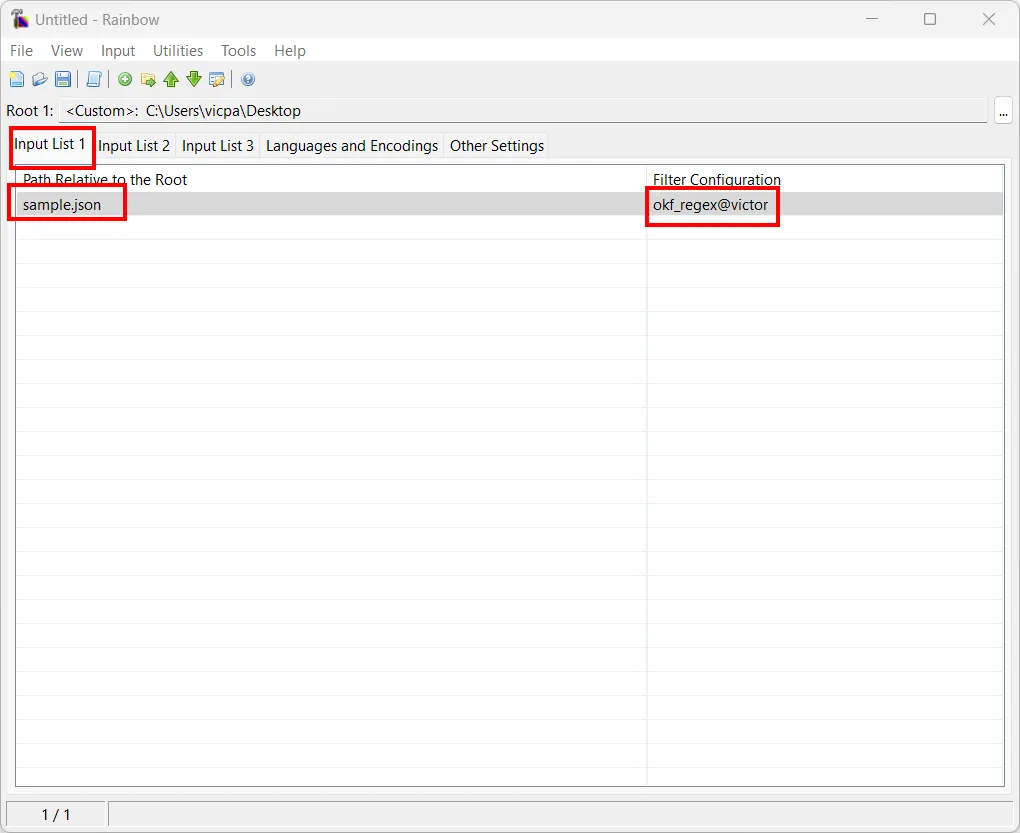
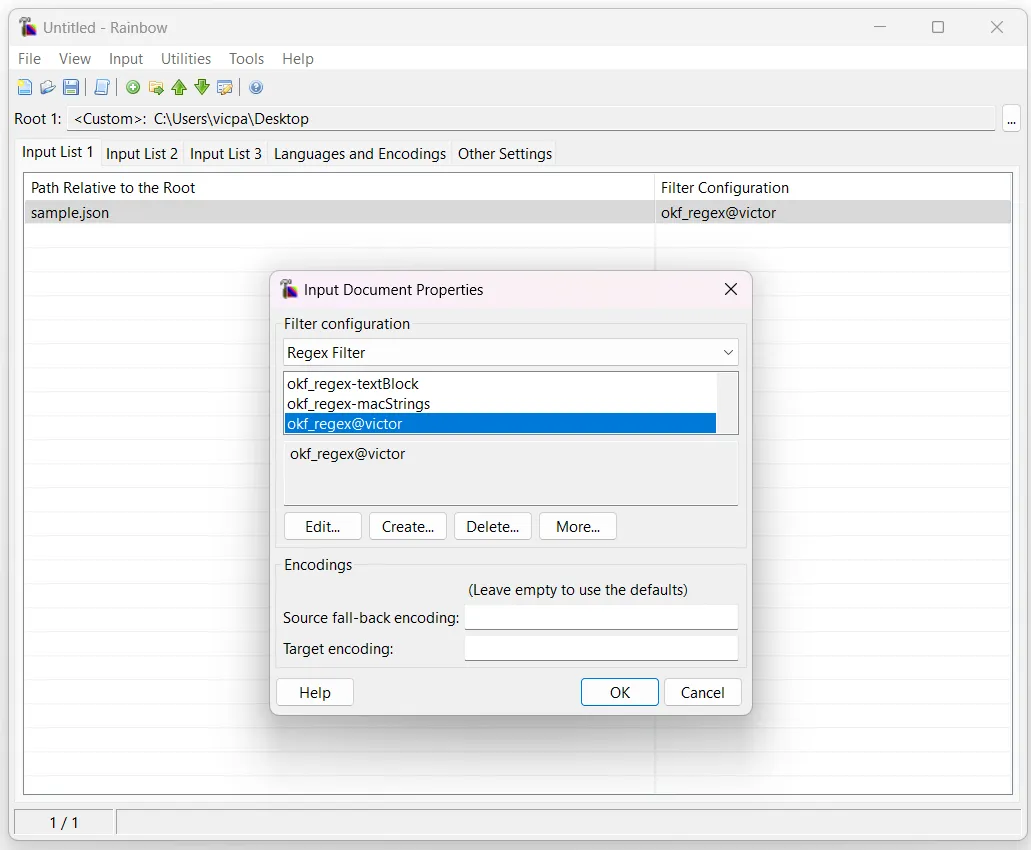
sample.jsoninto Input List 1. Rainbow assigns its JSON filter by default; double-click it, choose Regex Filter and create a configuration of your own. Mine isokf_regex@victor:
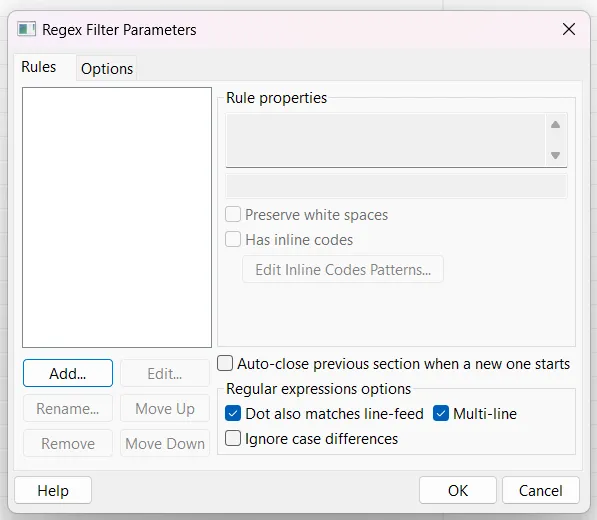
- Add a rule. In the Rules tab, click Add… I call mine
Scope, because that is what it defines:
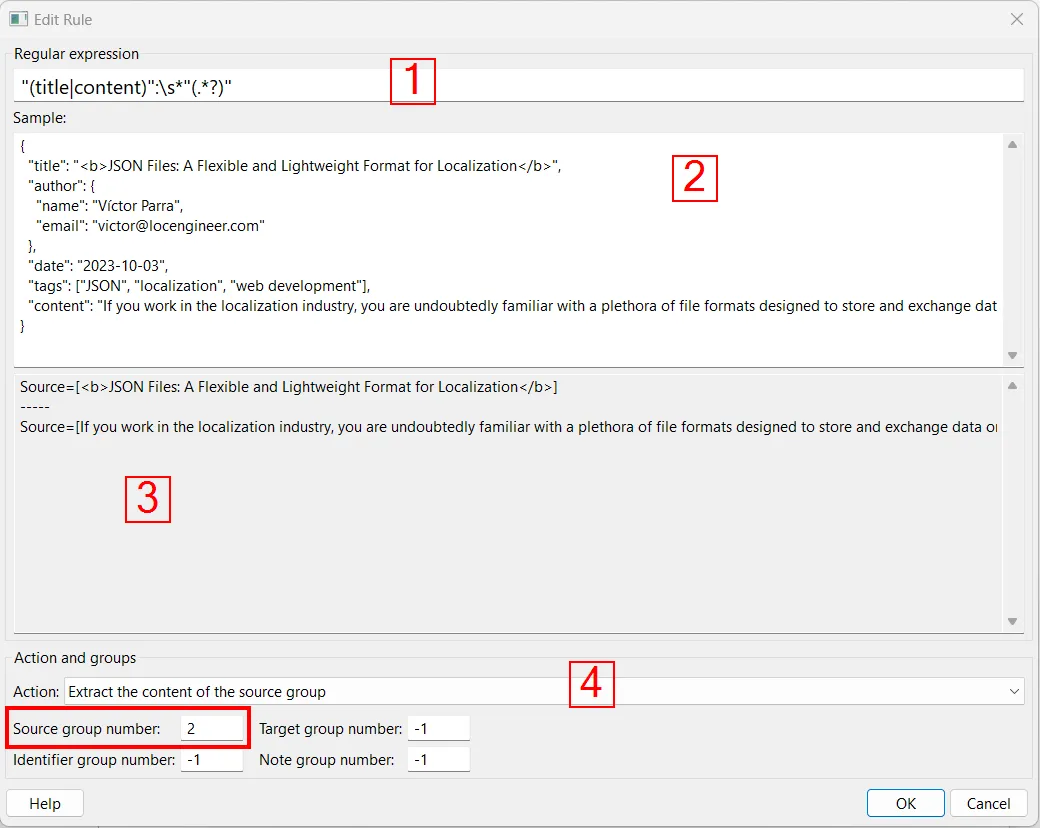
- Write the expression and test it on the real file. Paste as much of the file as fits into Sample; the panel below shows what the rule would extract, in real time:
"(title|content)":\s*"(.*?)"Group 1 captures the key name and group 2 the value. With the action set to Extract the content of the source group and Source group number set to 2, only the values are extracted:
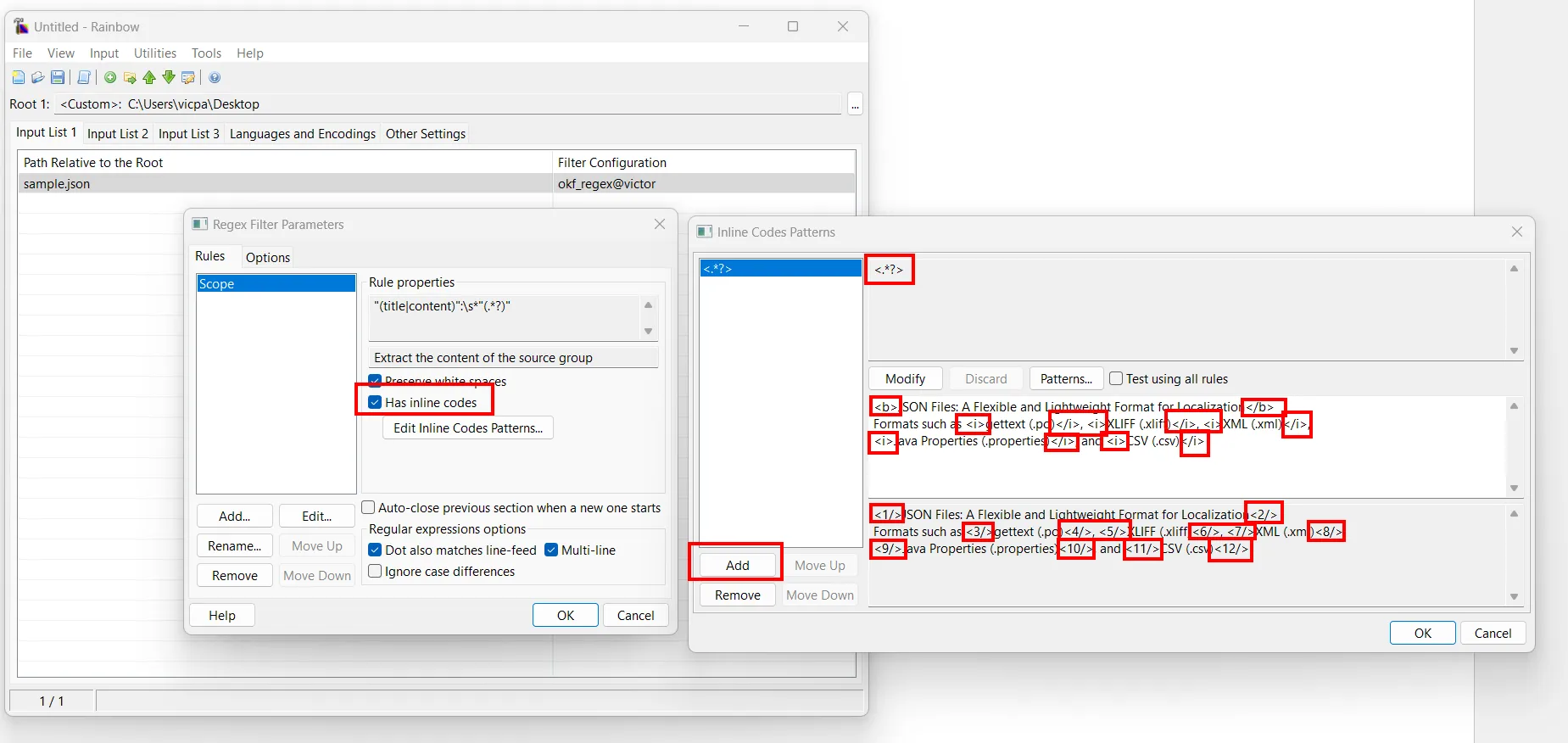
- Protect the inline code. The values contain HTML tags (
<b>,</b>,<i>,</i>). Tick Has inline codes, open Edit Inline Codes Patterns… and add<.*?>. The test panel shows every tag turned into a numbered code:
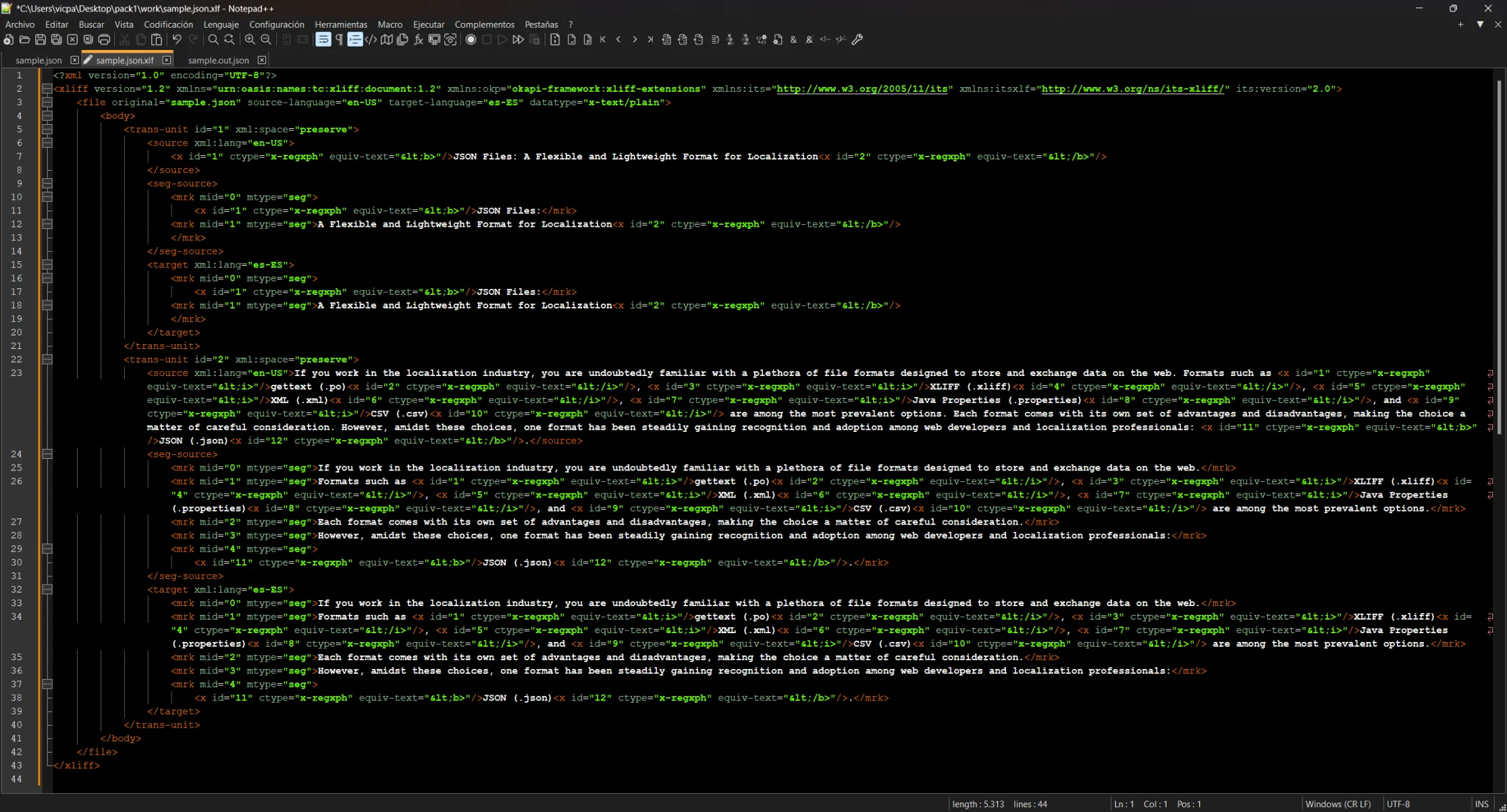
- Create the translation kit. The XLIFF file contains only the two values, segmented, with the tags as inline codes:
Check the scope with a pseudotranslation
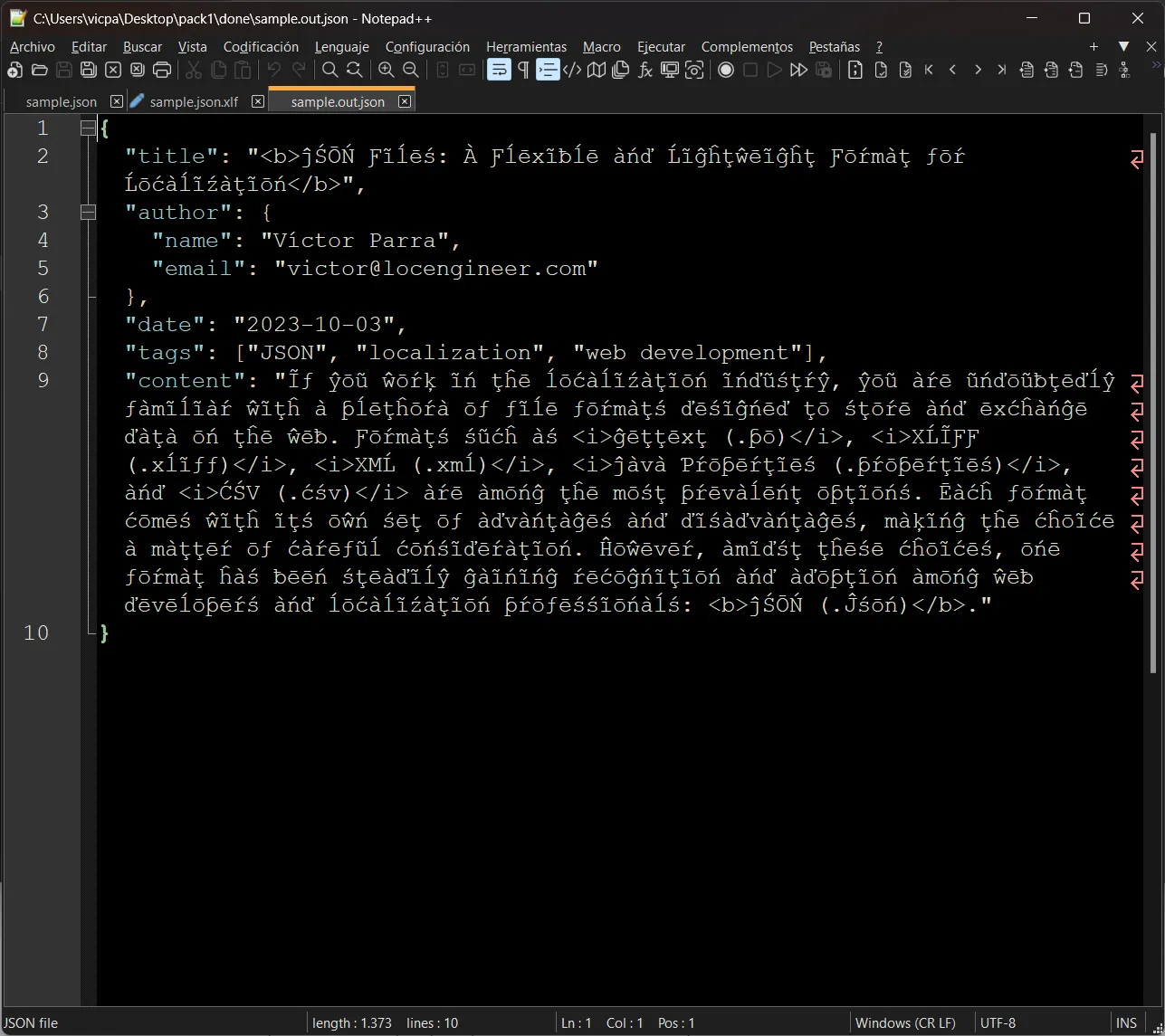
Before anything goes to translators, I pseudotranslate the XLIFF and merge it back into JSON. If a string comes out with accents, it is in scope. If it stays in plain English, the filter missed it. If the JSON no longer parses, the merge broke something. It takes two minutes and has saved me more than one project:
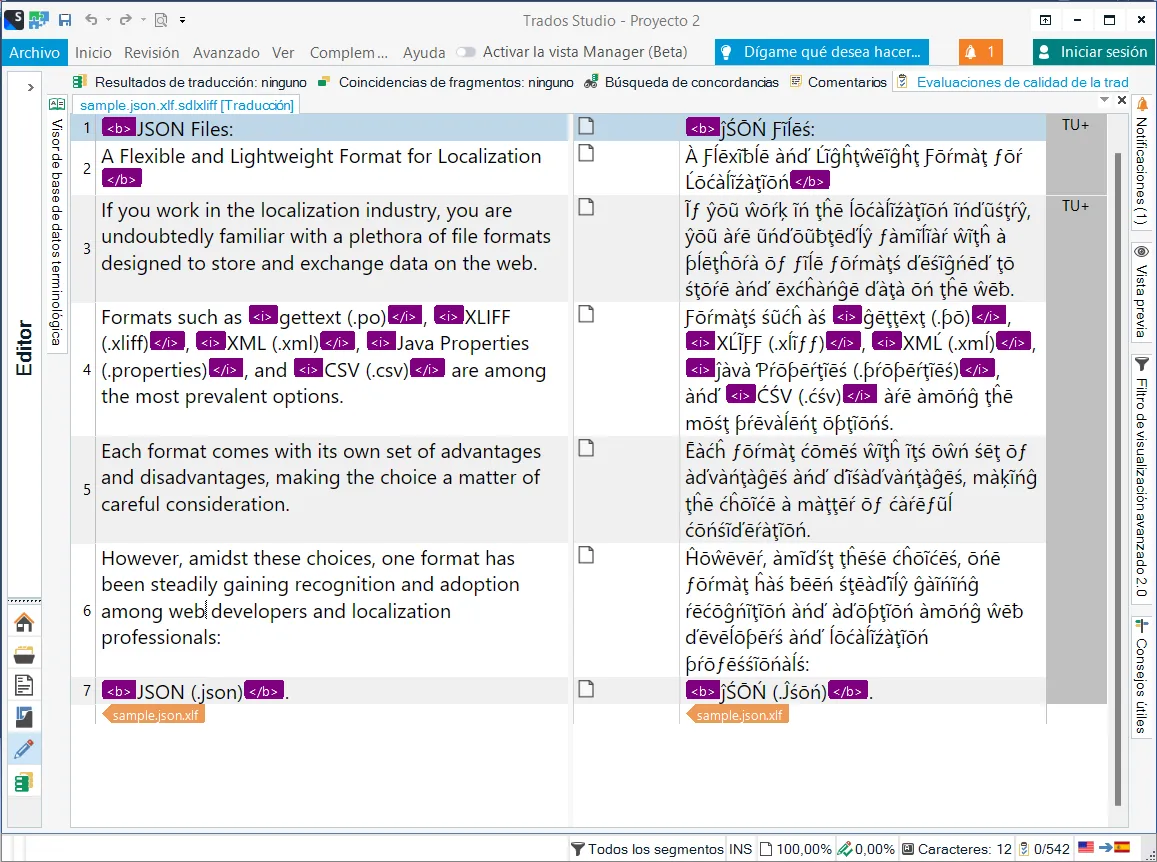
And this is what the translator sees in Trados, with the tags protected:
In my batch script for file preparation the same check runs automatically for every file in the project.
What I would change today
Looking at this example again, two things.
The expression has a weak spot. (.*?)" stops at the first double quote it finds, and JSON allows escaped quotes inside a value: "Click \"Save\"" would be cut right after Click \. In production I use a version that skips escaped characters:
"(title|content)":\s*"((?:[^"\\]|\\.)*)"For JSON, I would use the JSON filter. In Okapi’s JSON filter, select Do not extract key/string pairs and enter ^(title|content)$ in Excepted when the key matches the following regular expression: only those keys are extracted. Keep the anchors, or subtitle matches too. The Content Processing tab protects inline code with patterns, or passes the values through the HTML filter. A dedicated filter really parses the format, escaped quotes and nested objects included, so these days I keep regex filters for formats that have no filter of their own.
The short version
- The file filter decides what translators see: what is extracted, what is protected, how it is segmented and how it goes back.
- If the format has a dedicated filter, configure that one, save the configuration and reuse it.
- Regex filters work on anything text-based, but they extract exactly what you wrote. Test them on the real file.
- Pseudotranslate and merge before sending anything to translation.
If the files come from developers, my guide to JSON in localization covers the format itself.