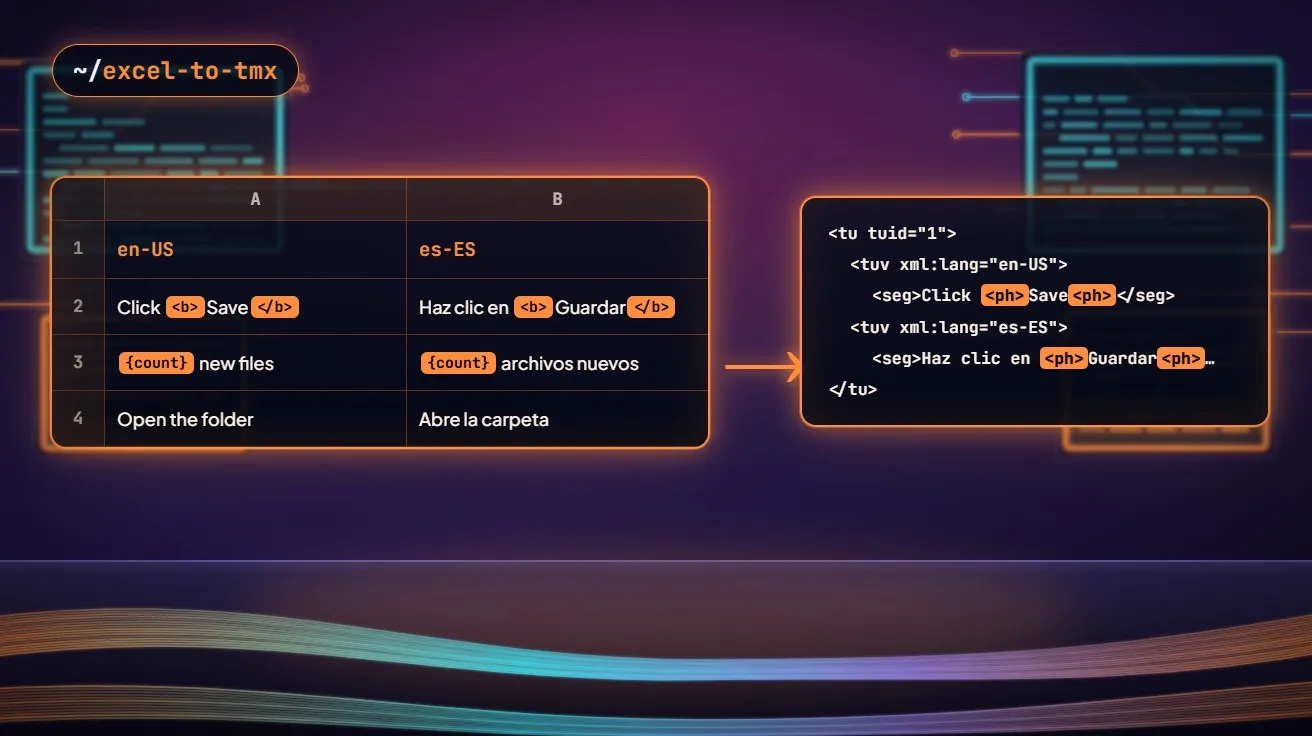
A bilingual spreadsheet is not a translation memory. It becomes one when the code inside the cells stops looking like text.
A client sends an Excel file with English in column A and Spanish in column B, one sentence per row, and asks you to use it for the translation. The obvious move is to convert it to TMX. The catch is in the cells: some of them contain code, like <b> tags or {count} placeholders, and if the memory stores that code as plain text, your CAT tool will not match it against the tagged text translators actually see.
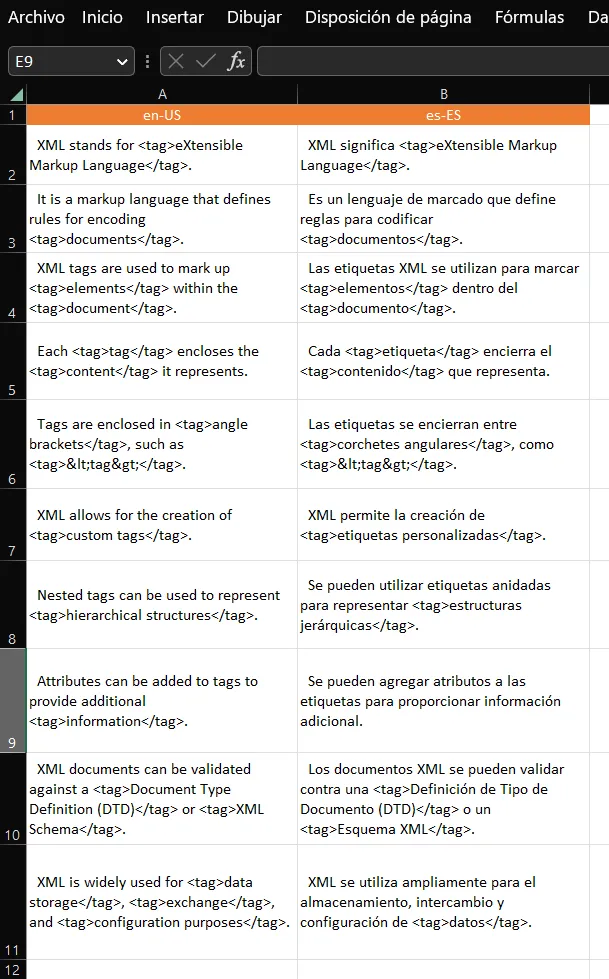
The same problem appears when a client hands over a TMX with untagged code, and the fix is the same: turn that code into proper TMX inline elements.
Step 1: from Excel to TMX
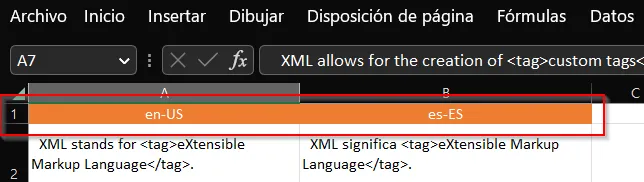
The first row should contain the language code of each column, using standard codes such as en-US and es-ES:
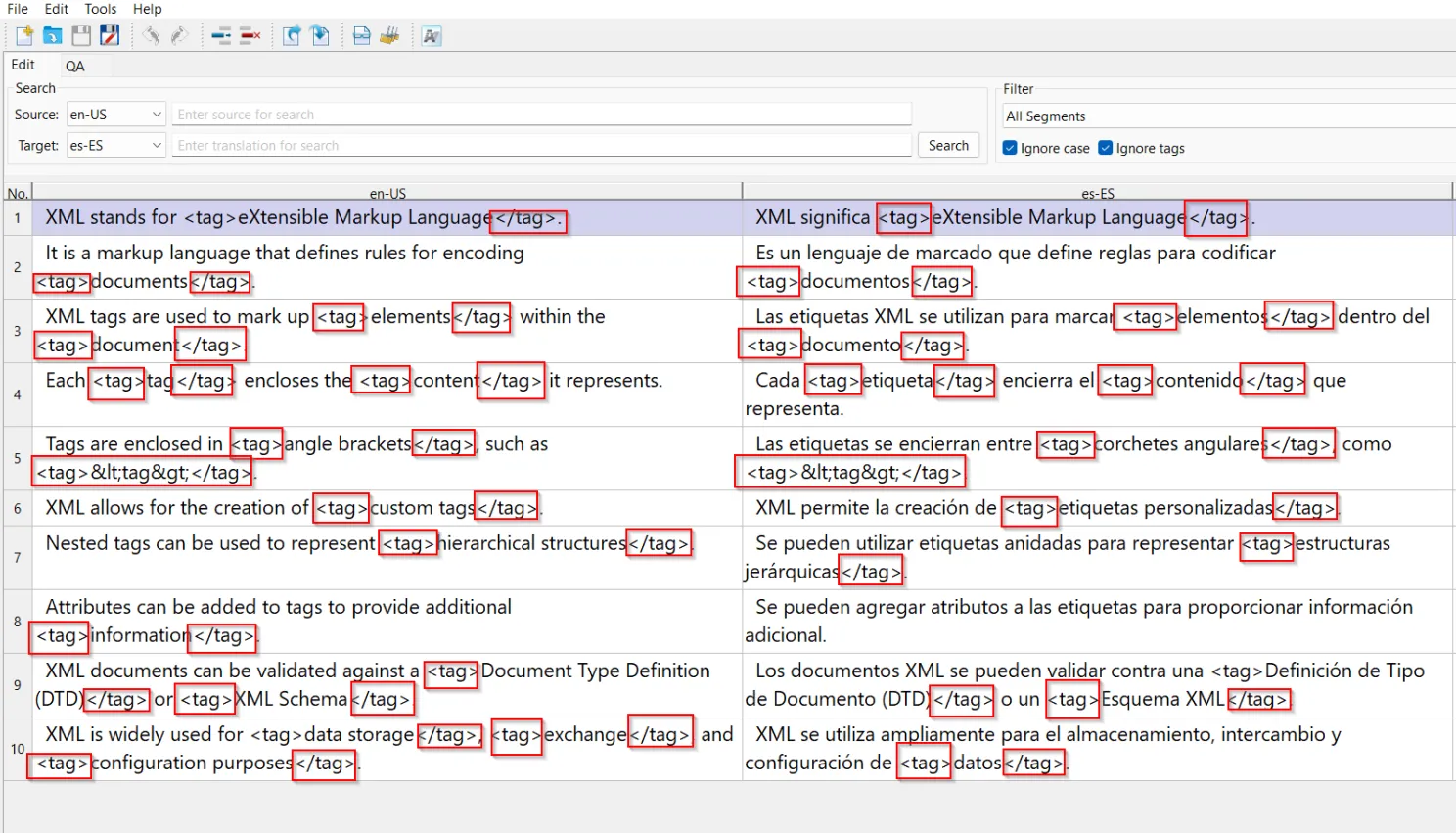
I used to do the conversion with Heartsome TMX Editor, which is no longer maintained. Today, TMXEditor by Maxprograms converts Excel and CSV files to TMX (its source code is free; the ready-made installers come with a subscription). Either way, you end up with a memory in which the code is still plain text:
Step 2: tag the code with a regex filter in Rainbow
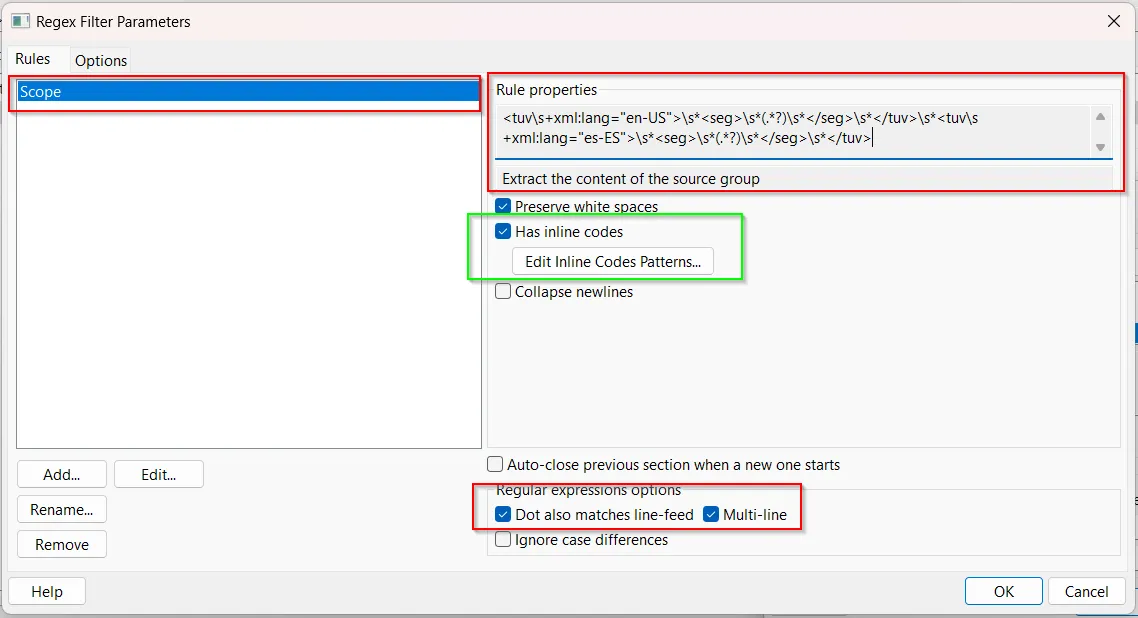
Rainbow, from the Okapi Framework, can read that TMX again with a regular-expression filter that knows which parts are code.
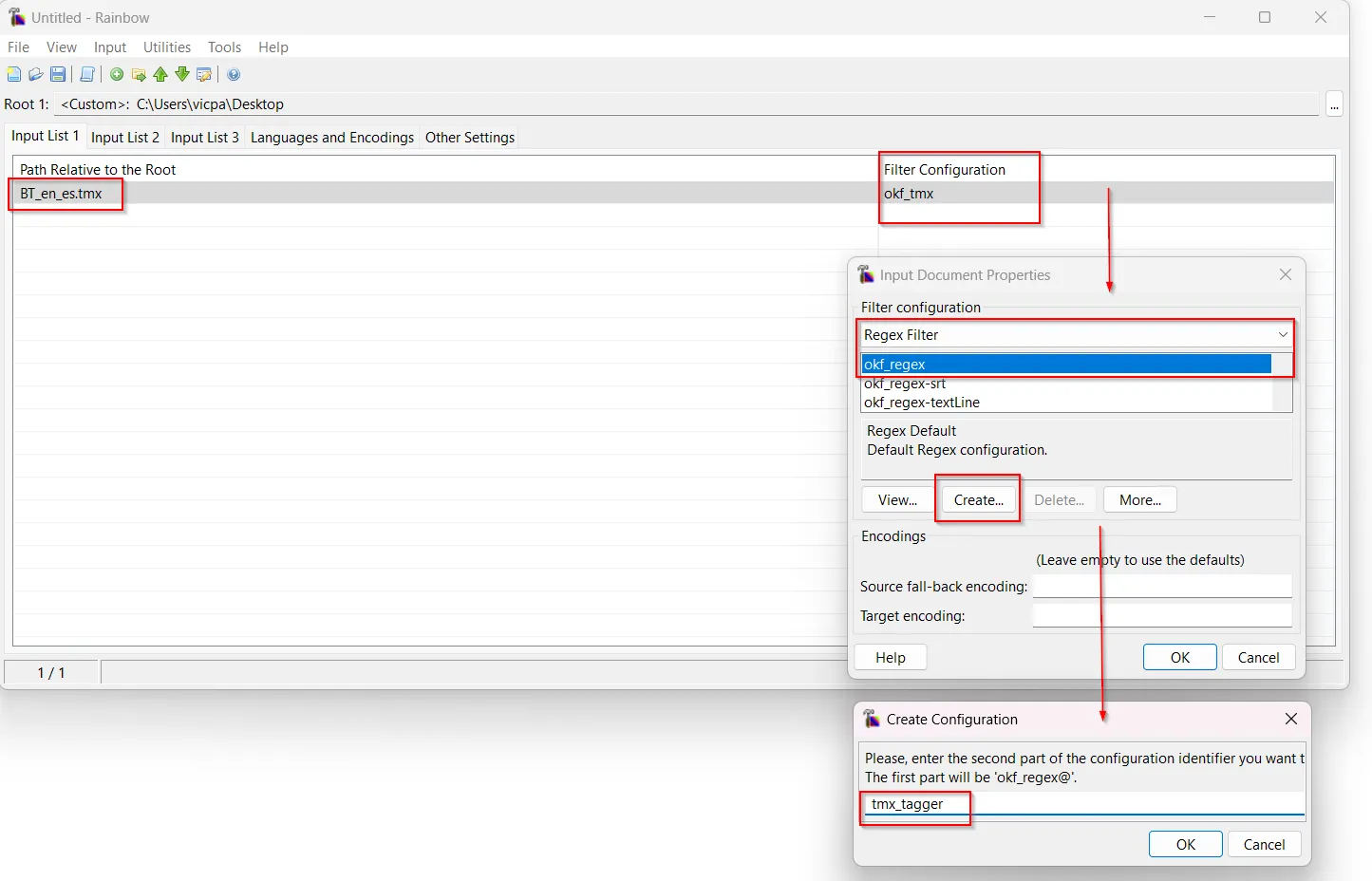
- Create a regex filter. Load the TMX in Input 1, double-click the filter name and choose Regex Filter > Create… The name is up to you; mine is
tmx_tagger:
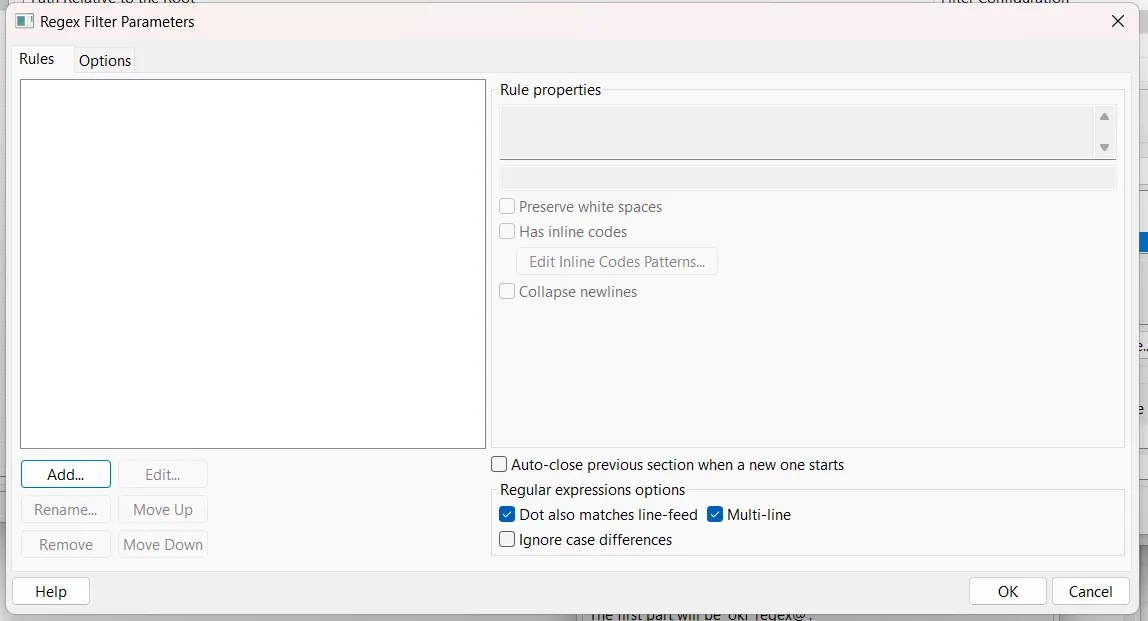
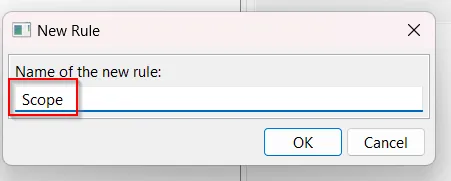
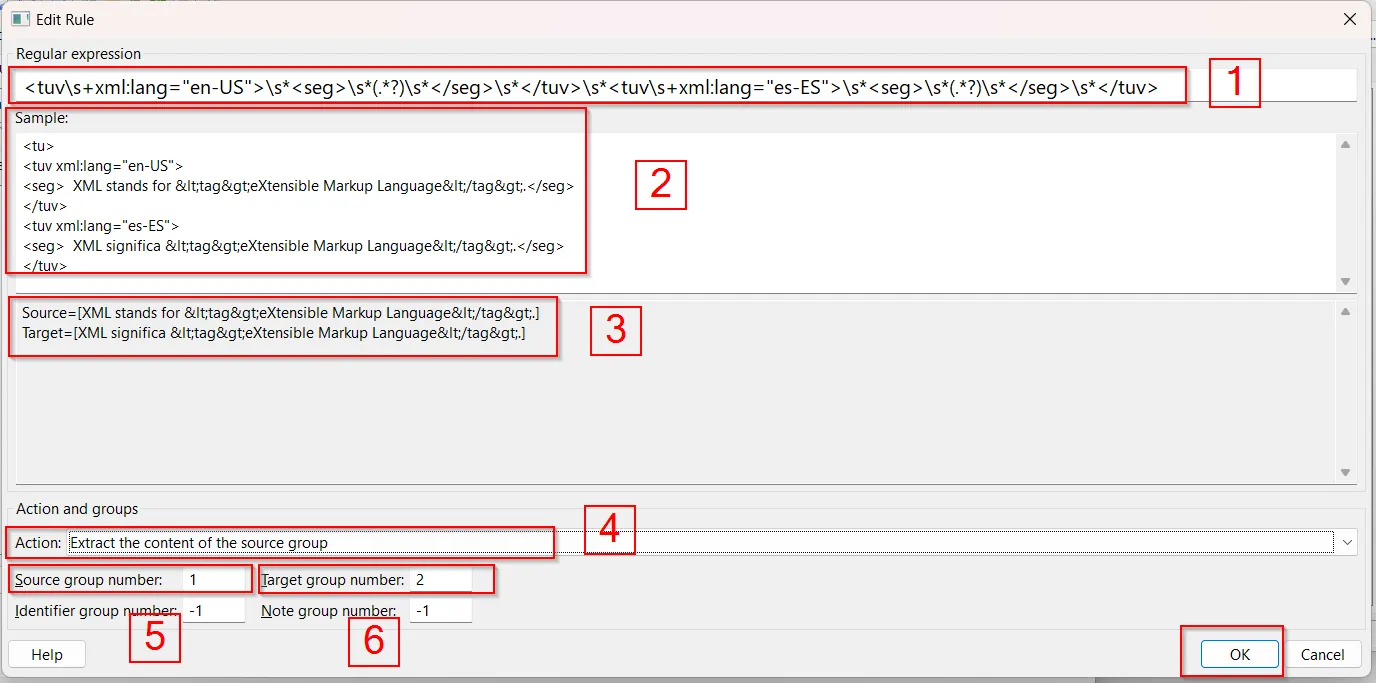
- Add a rule. In the filter configuration, click Add… in the Rules tab:
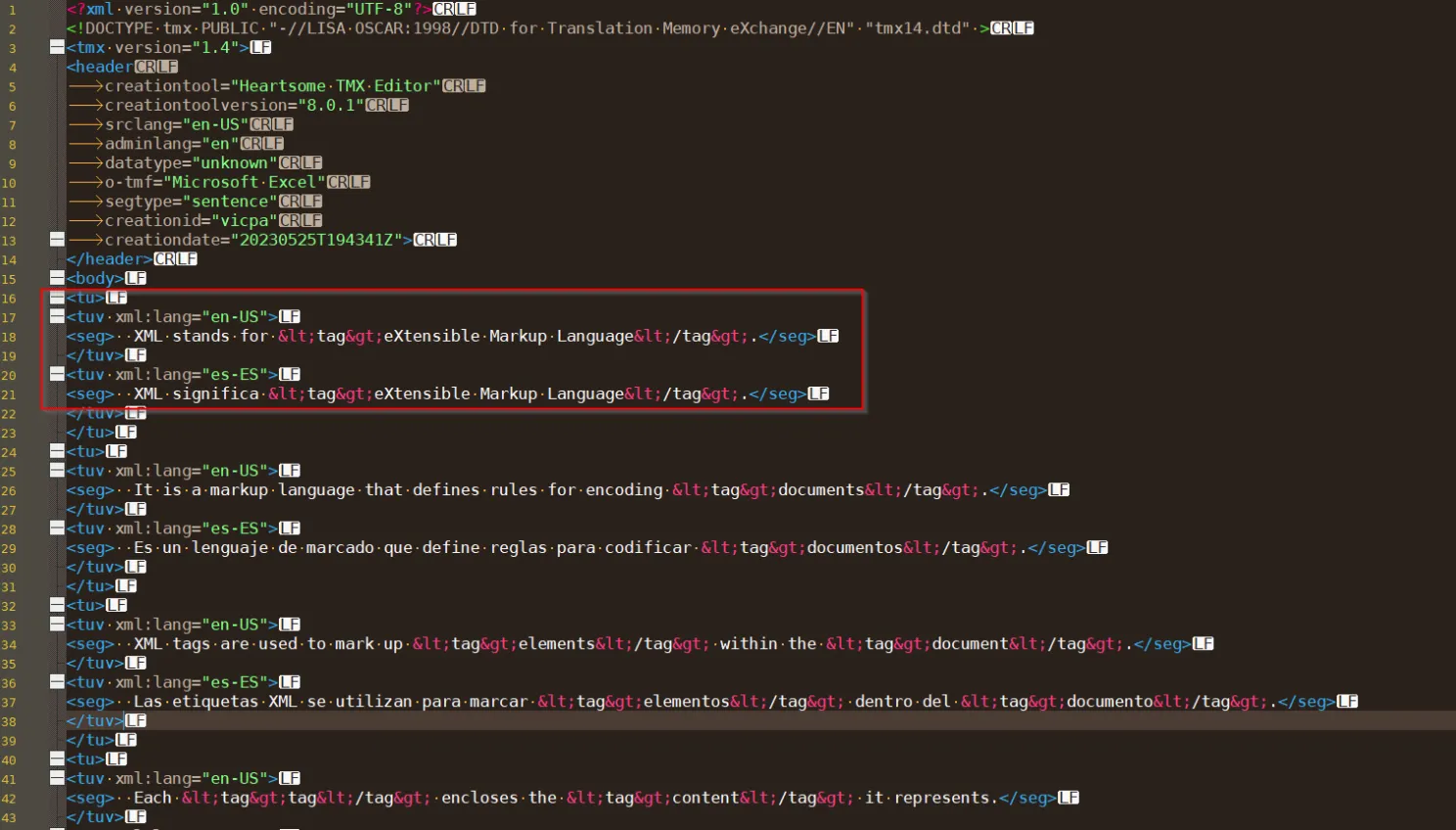
- Paste a complete translation unit as sample text. Open the TMX in a text editor and copy one full unit, from
<tu>to</tu>; it does not matter which one. Rainbow uses it to preview the rule in real time:
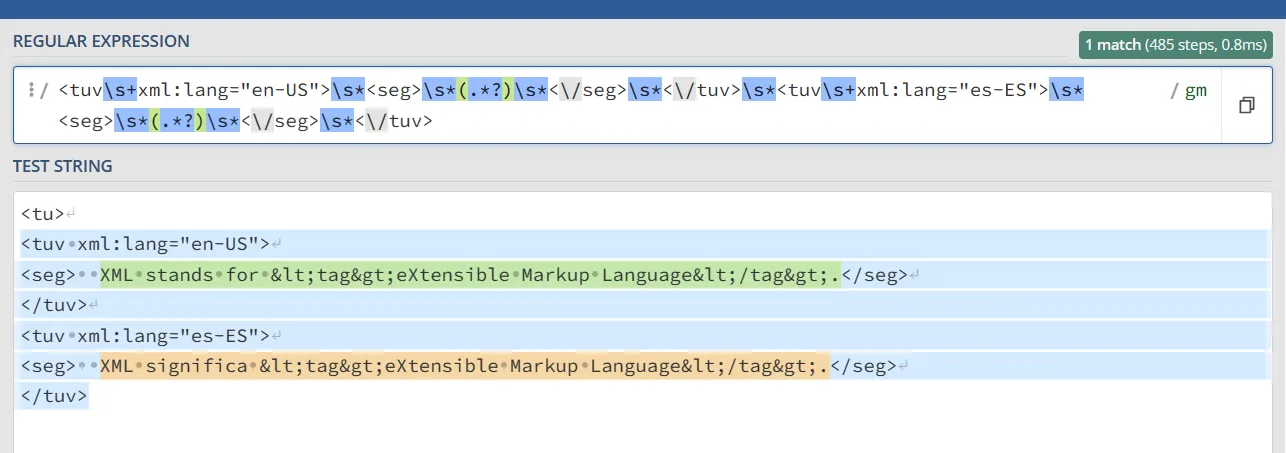
- Write the expression with two groups, one that captures the source text and one that captures the target, and tell the rule to extract the source and the target from those groups. The preview shows what lands in each one:

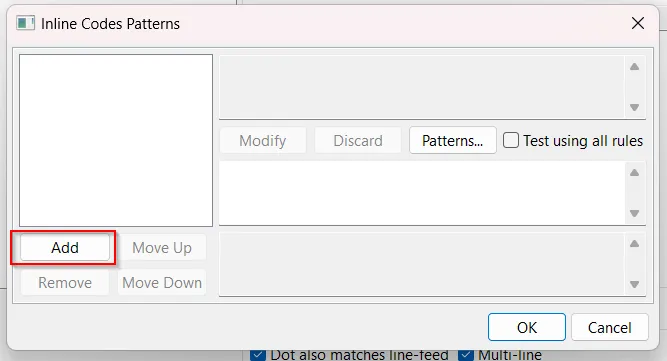
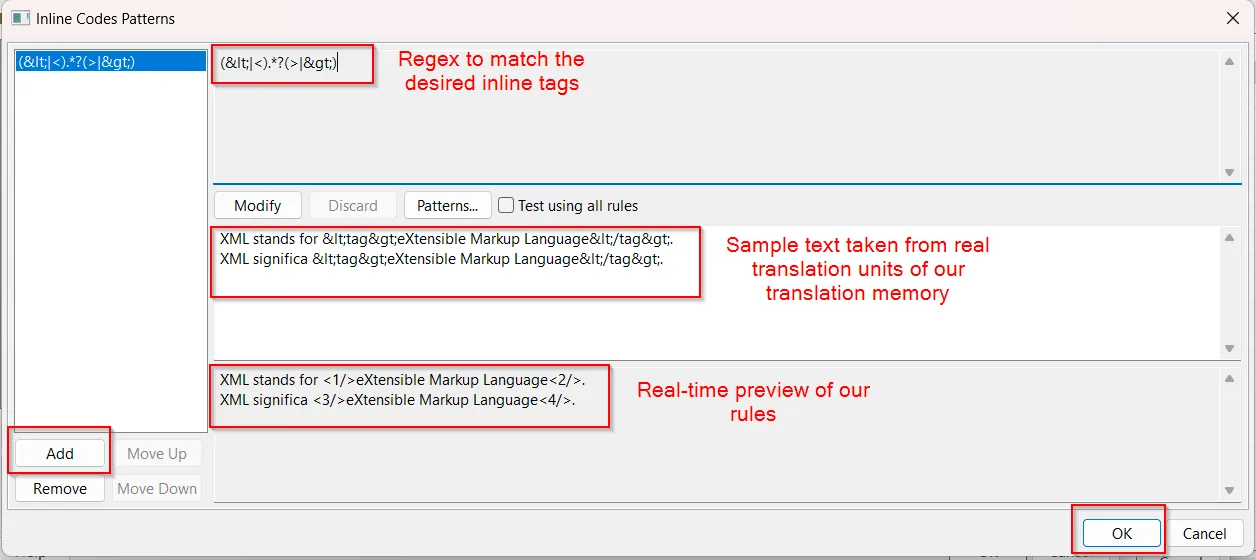
- Define the inline codes. In the general options, add the patterns that must become tags, which here are the XML elements inside the text:
- Convert back to TMX with Utilities > File Format Conversion… and TMX as the output:
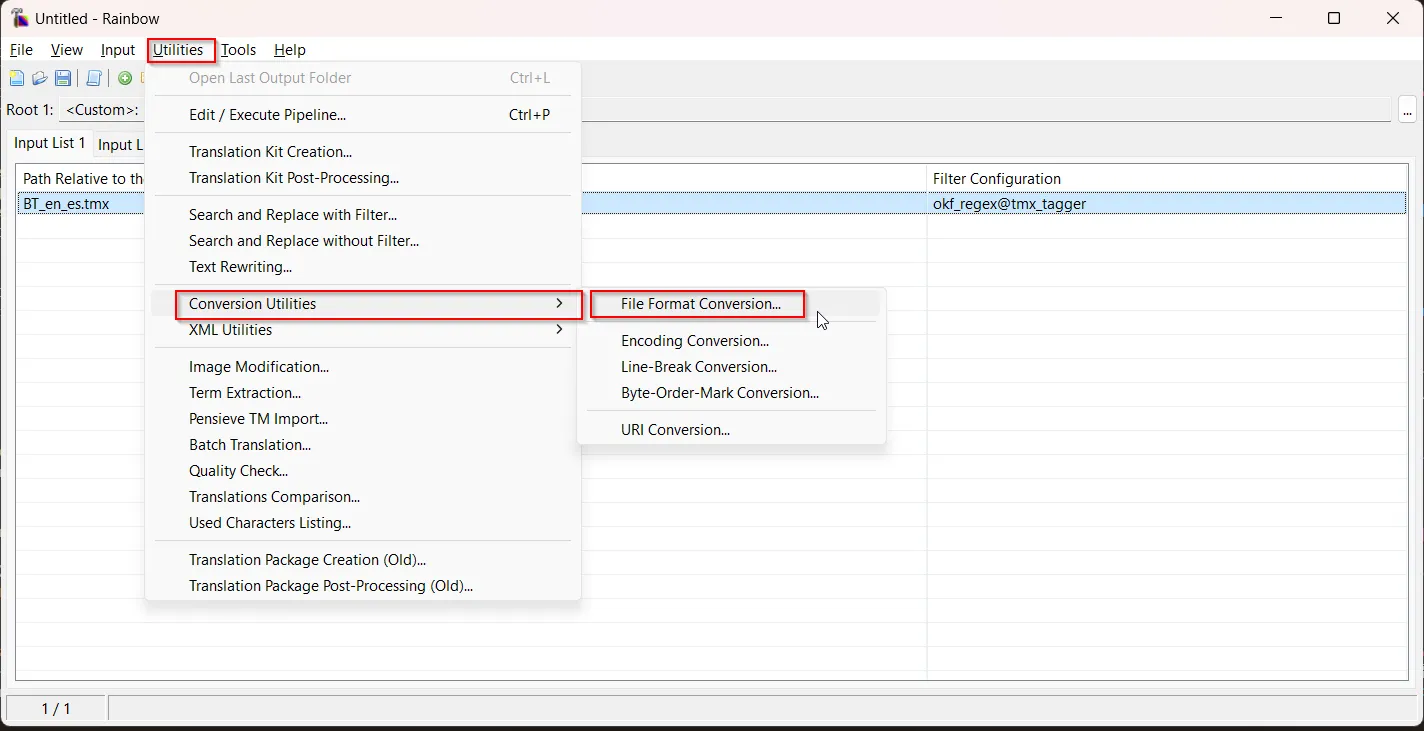
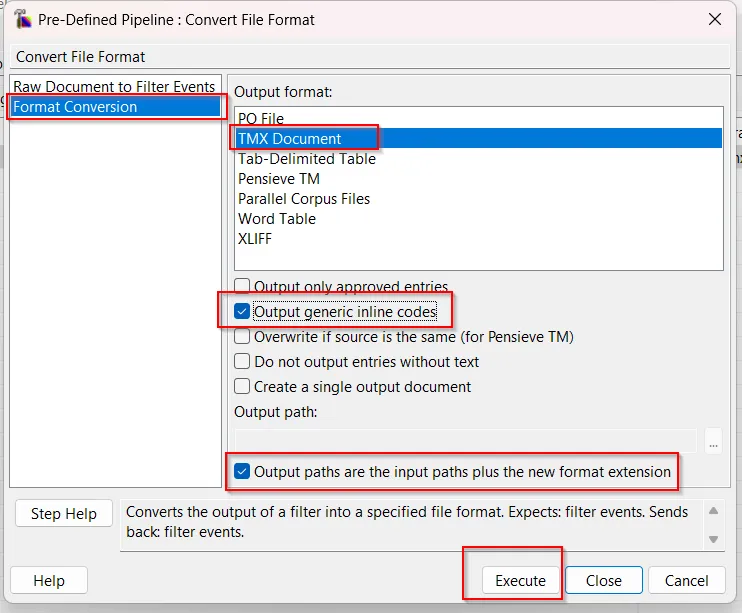
The result is the same memory, now with the code inside standard TMX <ph> elements:
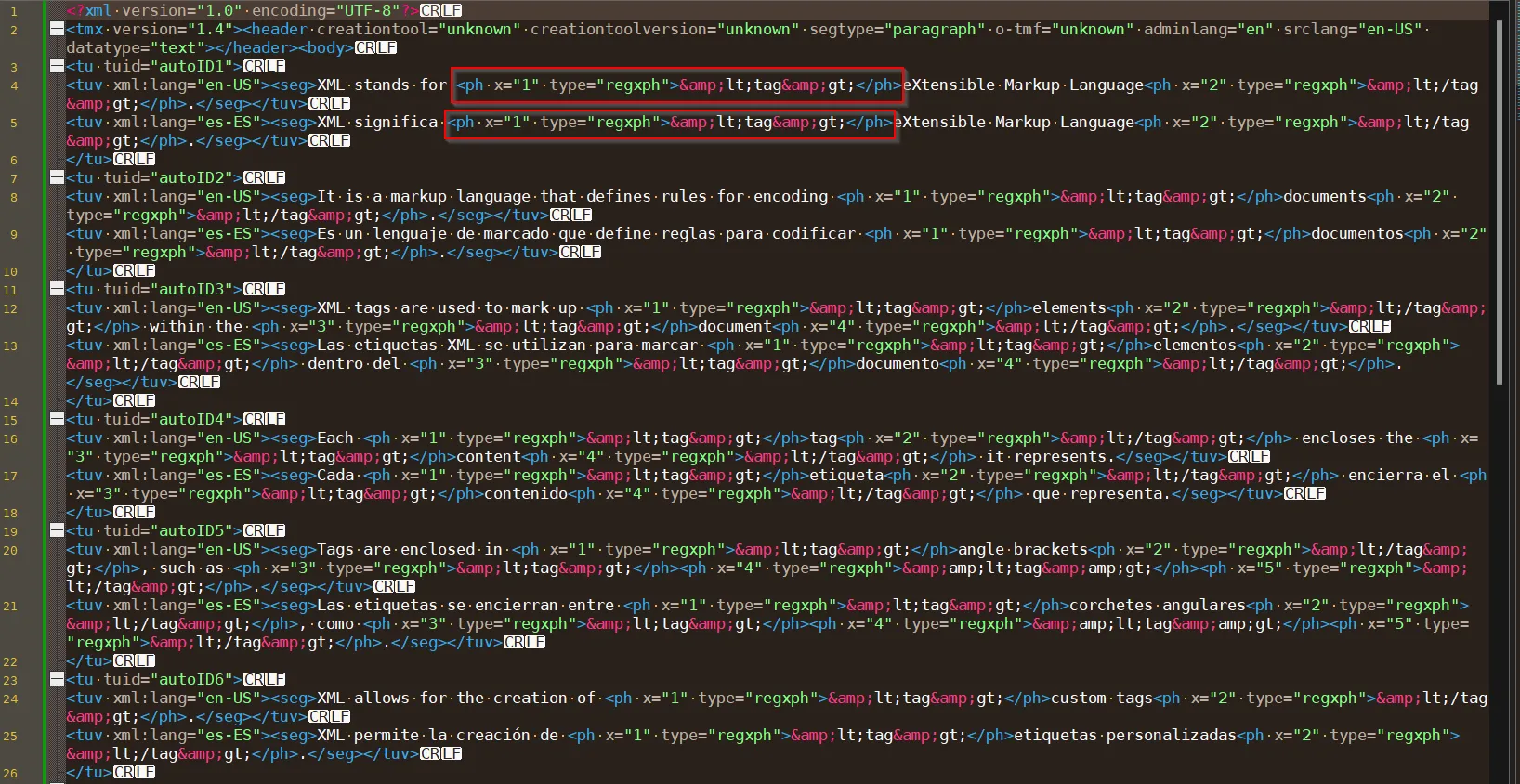
Save the filter. Next time it is a two-minute job, and it adapts easily to other projects.
The same in one step with Python
If you do this often, or as part of a pipeline, a short script goes from the spreadsheet to a tagged TMX in one go. It reads the language codes from the first row and turns tags and {placeholders} into <ph> elements:
import re
from lxml import etree
from openpyxl import load_workbook

XML_LANG = "{http://www.w3.org/XML/1998/namespace}lang"
TAG = re.compile(r"<[^>]+>|\{\w+\}")  # inline code to protect: tags and {placeholders}

def write_seg(seg, text):
    """Writes text into <seg>, turning inline code into <ph> elements."""
    last, pos = None, 0
    for number, match in enumerate(TAG.finditer(text), 1):
        chunk = text[pos:match.start()]
        if last is None:
            seg.text = chunk
        else:
            last.tail = chunk
        last = etree.SubElement(seg, "ph", x=str(number))
        last.text = match.group()
        pos = match.end()
    if last is None:
        seg.text = text[pos:]
    else:
        last.tail = text[pos:]

def excel_to_tmx(xlsx_path, tmx_path):
    sheet = load_workbook(xlsx_path, read_only=True).active
    rows = sheet.iter_rows(values_only=True)
    src_lang, tgt_lang = next(rows)[:2]  # first row: language codes, e.g. en-US | es-ES
    root = etree.Element("tmx", version="1.4")
    etree.SubElement(root, "header", {
        "creationtool": "excel_to_tmx", "creationtoolversion": "1.0", "segtype": "sentence",
        "o-tmf": "xlsx", "adminlang": "en", "srclang": src_lang, "datatype": "plaintext",
    })
    body = etree.SubElement(root, "body")
    for number, (source, target, *_) in enumerate(rows, 1):
        if not source or not target:
            continue
        tu = etree.SubElement(body, "tu", tuid=str(number))
        for lang, text in ((src_lang, source), (tgt_lang, target)):
            tuv = etree.SubElement(tu, "tuv", {XML_LANG: lang})
            write_seg(etree.SubElement(tuv, "seg"), str(text))
    etree.ElementTree(root).write(tmx_path, encoding="UTF-8", xml_declaration=True, pretty_print=True)
From the row “Click <b>Save</b> to keep your changes.” it produces:
<seg>Click <ph x="1"><b></ph>Save<ph x="2"></b></ph> to keep your changes.</seg>Adapt the TAG expression to the code your files contain, and test it on a copy of the real file, not on a tidy example.
Regular expressions are the real skill here
Everything in this article depends on regular expressions. My favourite place to build and test them is regex101: it explains every part of the pattern, shows the groups and supports several regex flavours.
The short version
- A bilingual table becomes useful when the code in its cells becomes tags.
- First row, language codes; then convert to TMX.
- Tag the code with a regex filter in Rainbow, or do everything in one step with a script.
- Save the filter and reuse it.
If your memory came out segmented by paragraph, here is how to resegment a TMX by sentence.