For many of us, OmegaT was an absolute lifesaver during our university days, when investing heavily in proprietary software licenses was simply out of the question. However, as we step into the professional market, we frequently encounter translation agencies and clients demanding the use of commercial, exorbitantly priced CAT tools.
This has fostered the misconception that open-source software is strictly for beginners. As an avid Linux user and Open Source advocate, I strongly disagree. If we can master tools like Inkscape for vector design or LibreOffice for advanced document processing, why not do the same with our translation software?
In this article, I will show you how to customize and “supercharge” OmegaT 6.x, elevating it to meet the stringent demands of modern localization engineering.
A special thanks to the developers and to Jean-Christophe Helary for maintaining and continuously updating the comprehensive user guide for this fantastic project.
1. Absolute Portability: Choosing the Right Version
The OmegaT download page offers a myriad of options.
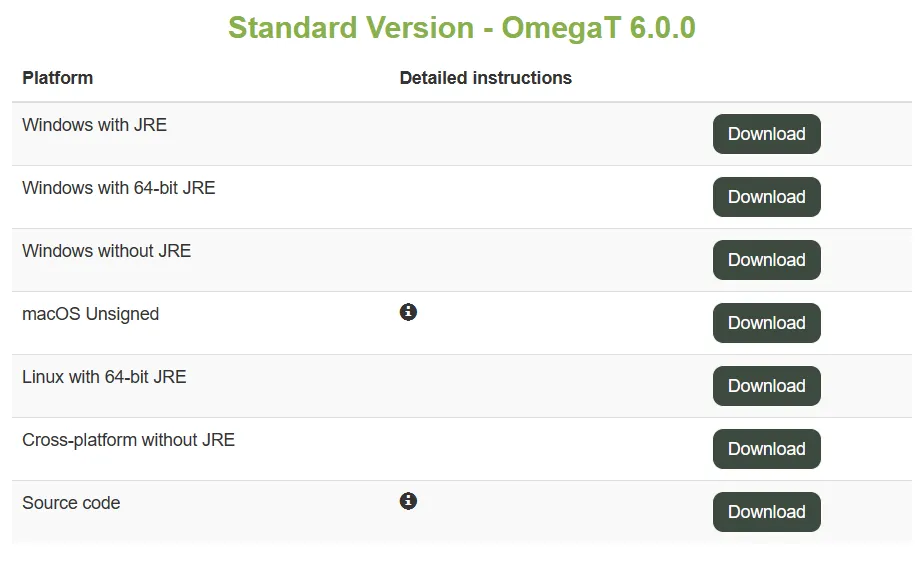
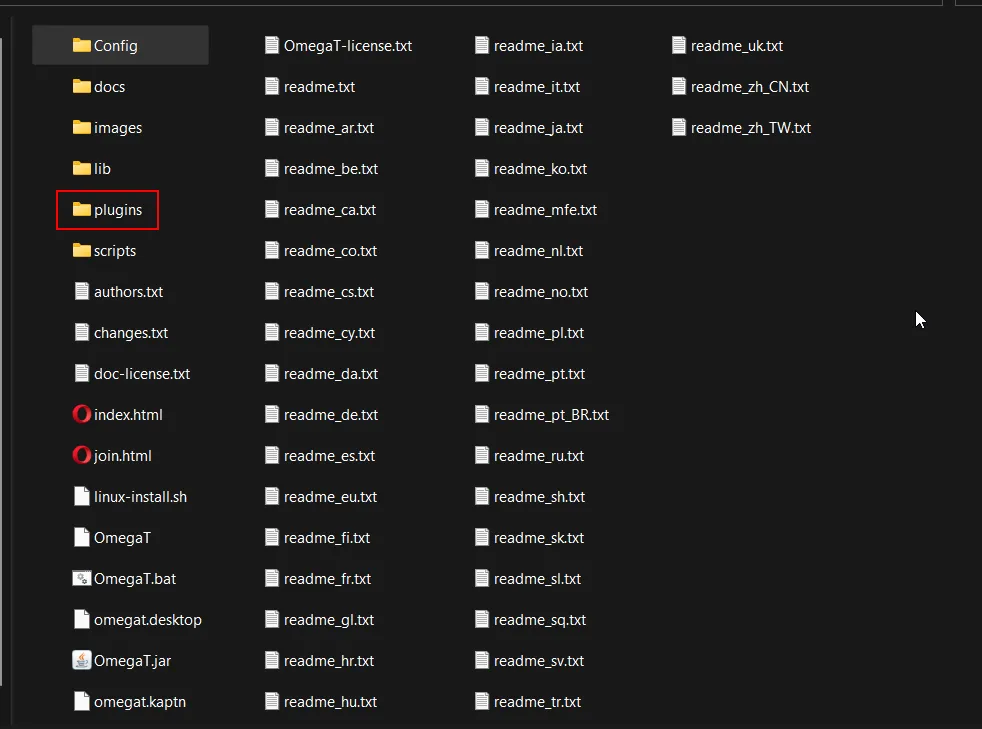
My first pro-tip is to always download the Cross-platform without JRE version, even if you are working on a Windows machine. When you extract the .zip file, you will find this directory structure:
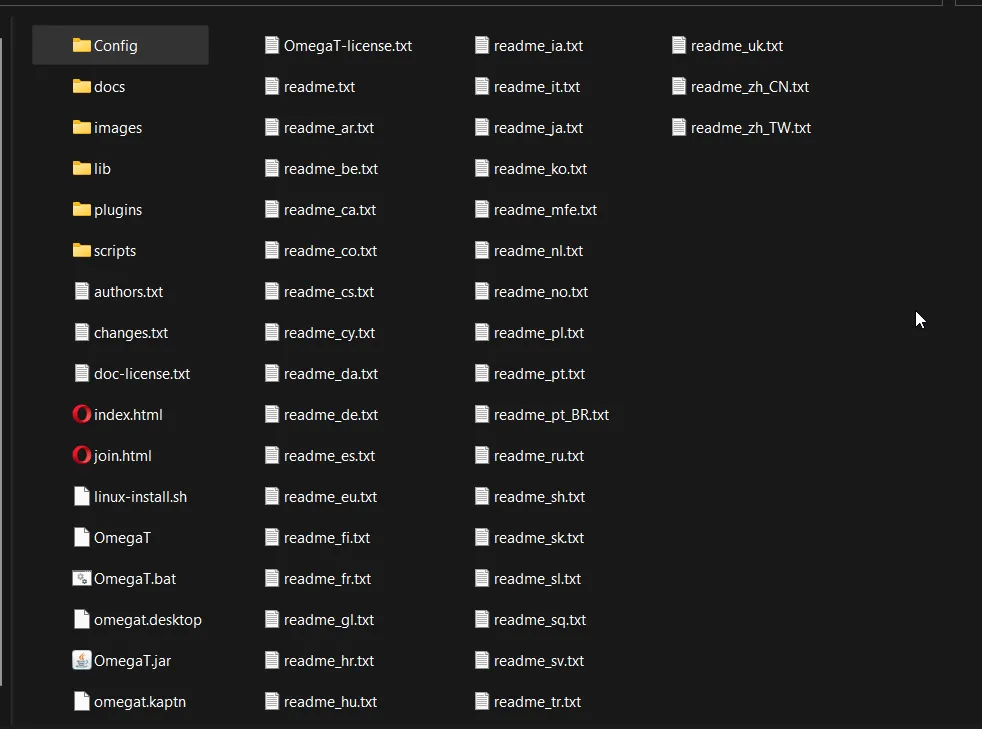
The real magic is hidden in the .bat file. Instead of launching the standard .exe, we are going to open this .bat file with a text editor and inject custom startup parameters:

-XXmx8000M: We allocate 8GB of RAM to OmegaT. This is critical for smoothly handling massive translation memories and heavy projects without lagging (requires a 64-bit Java installation).-Duser.language=en: Forces the user interface into English (the industry standard).--config-dir=./Config/: Instructs OmegaT to save all your preferences within this exact folder, bypassing the local AppData directory.
The Result? Absolute Portability. You can copy this folder to a USB drive, plug it into any computer, and all your settings, shortcuts, and plugins will remain perfectly intact.
2. Come to the Dark Side (Dark Theme)
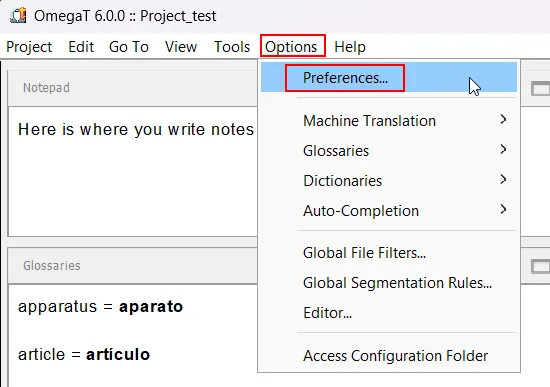
Those of us staring at code and text segments for eight hours a day deeply appreciate dark themes. OmegaT comes with a few default options under Options > Preferences… > Appearance.
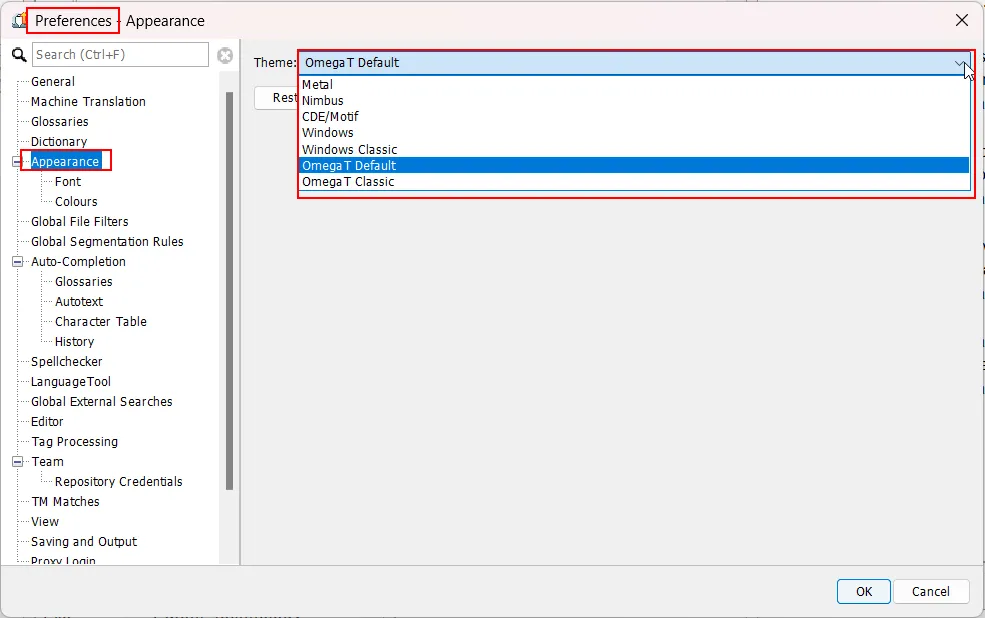
Unfortunately, it lacks a decent native dark mode. To achieve a sleek, modern look like this:
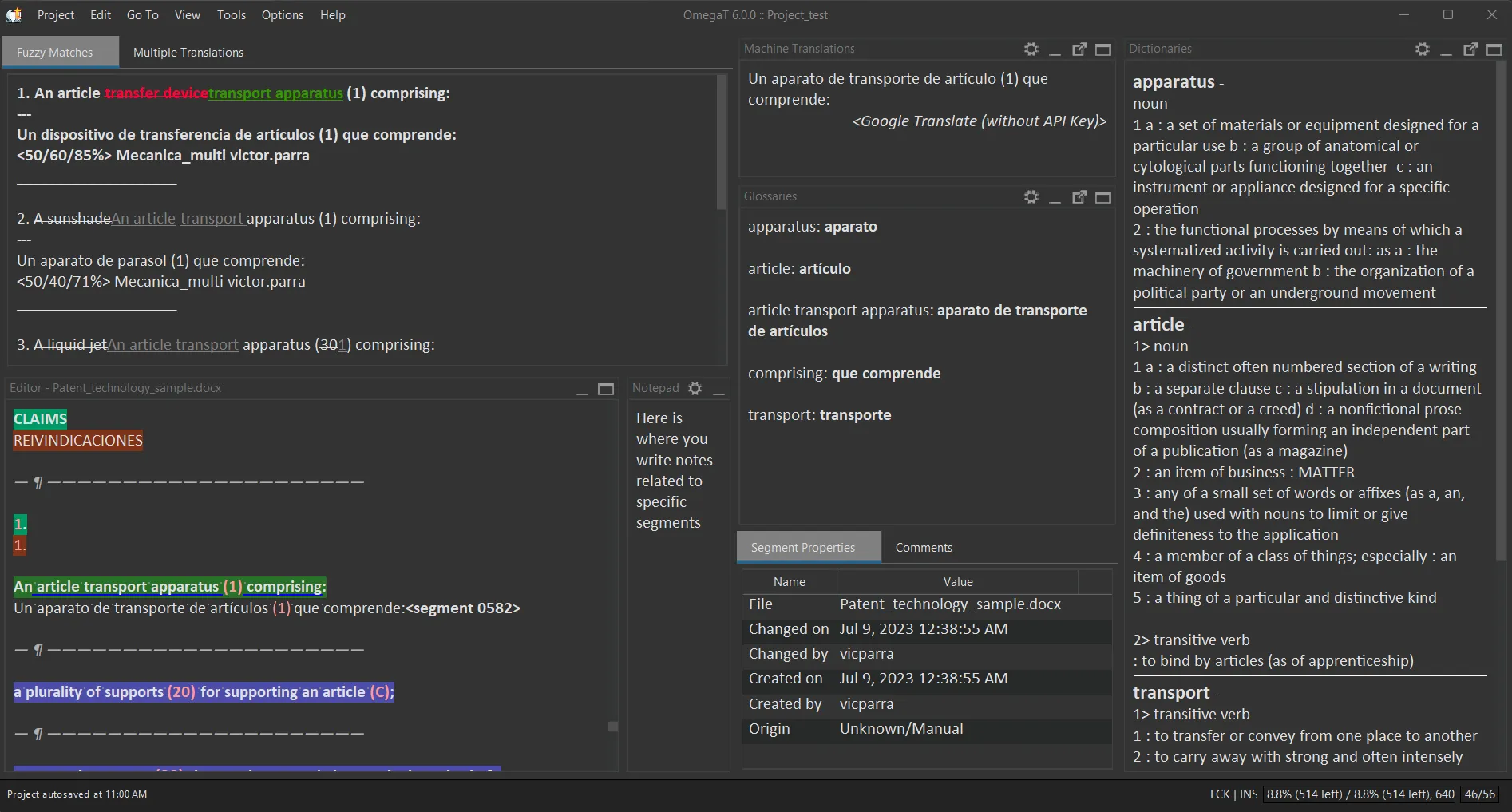
We need to rely on Plugins. Download the OmegaT Flat Theme plugin (a .jar file) and place it inside the /plugins folder within your OmegaT directory.
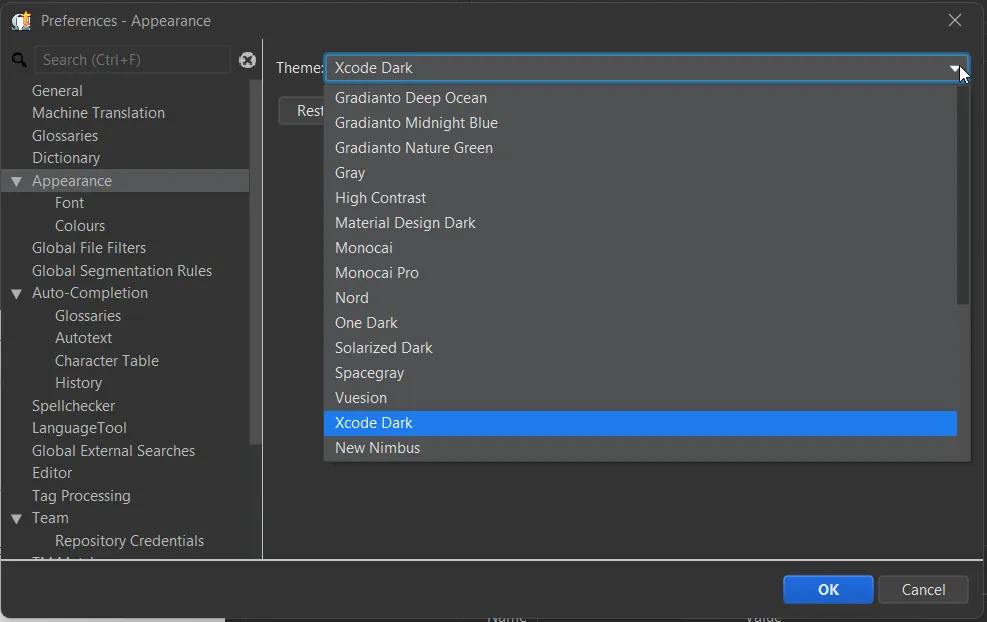
Upon restarting the application, you will unlock an extensive list of “Flat” themes, including several elegant, eye-friendly dark variants.
3. Revolutionize Your Fuzzy Matches Pane
By default, OmegaT displays Translation Memory (TM) matches in a rather spartan manner:
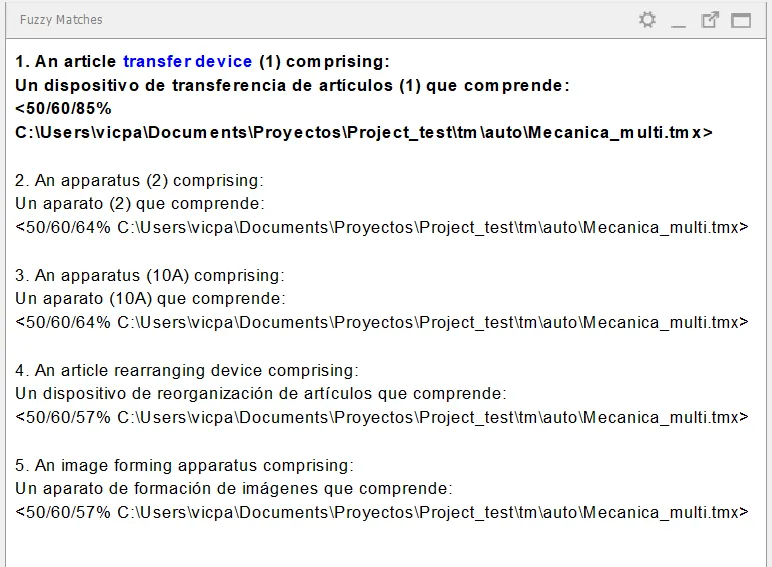
Personally, I prefer a much cleaner view, akin to modern commercial CAT tools:
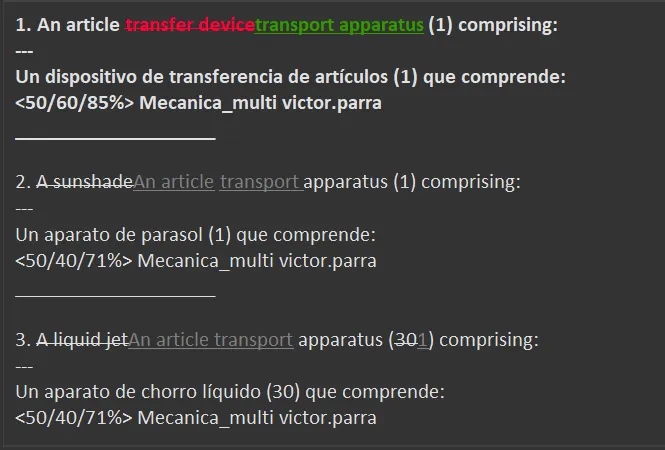
With this custom configuration, I achieve:
- Highly visible track-changes between the TM hit and my current segment.
- The removal of long file paths, displaying only the clean memory name.
- The inclusion of the
changeidvariable, letting me know exactly which translator modified that string.
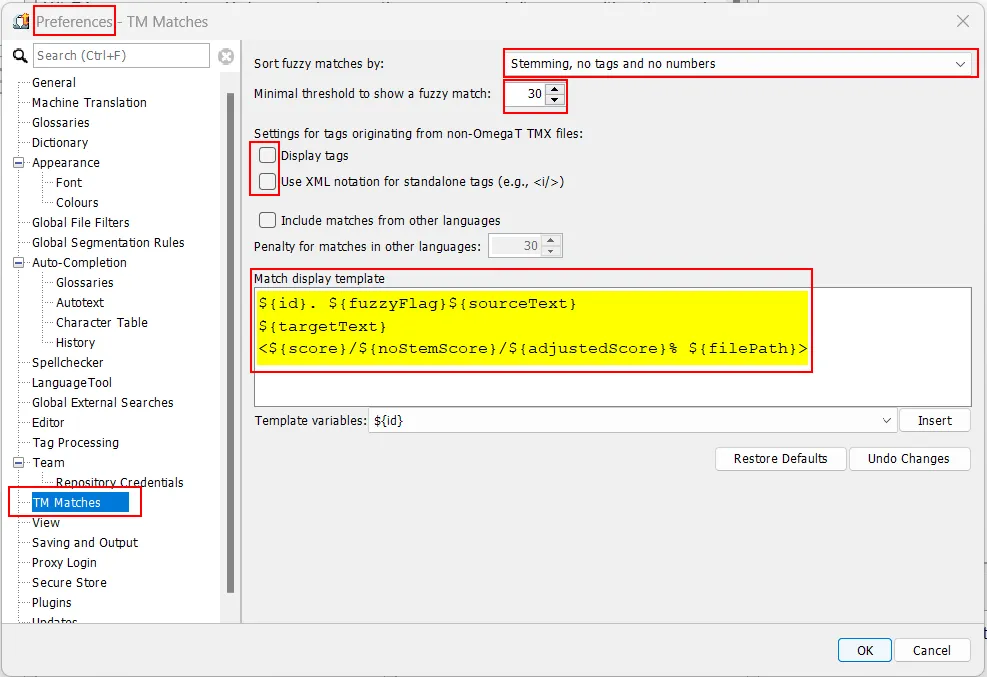
To set this up, navigate to Options > Preferences… > TM Matches and apply these exact variables:
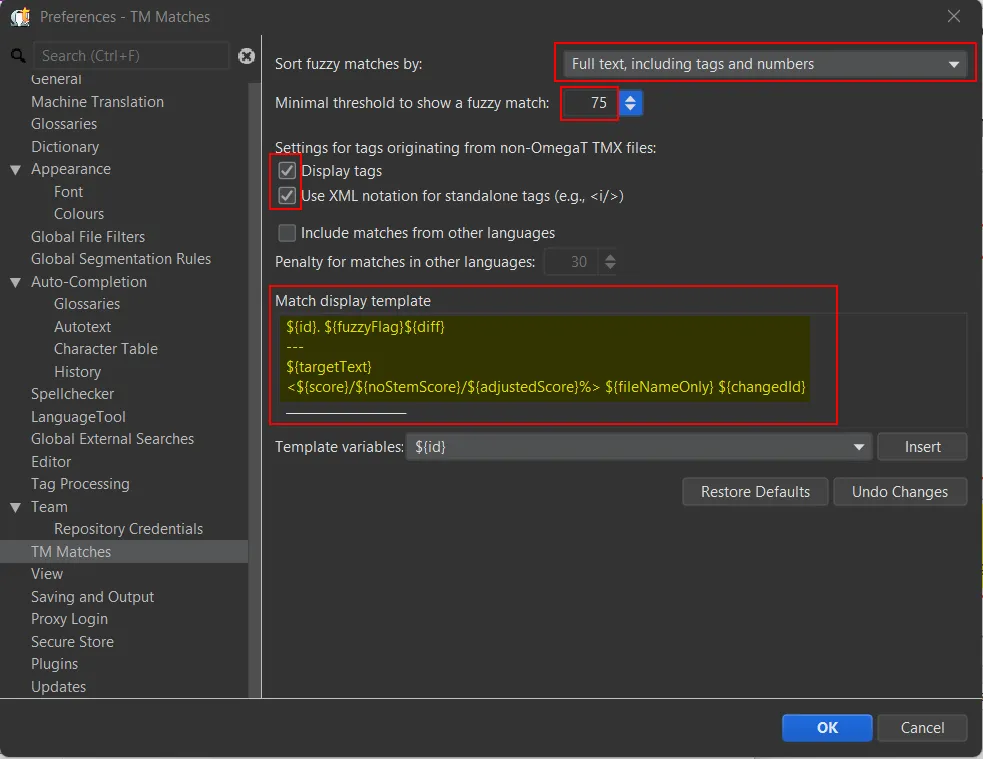
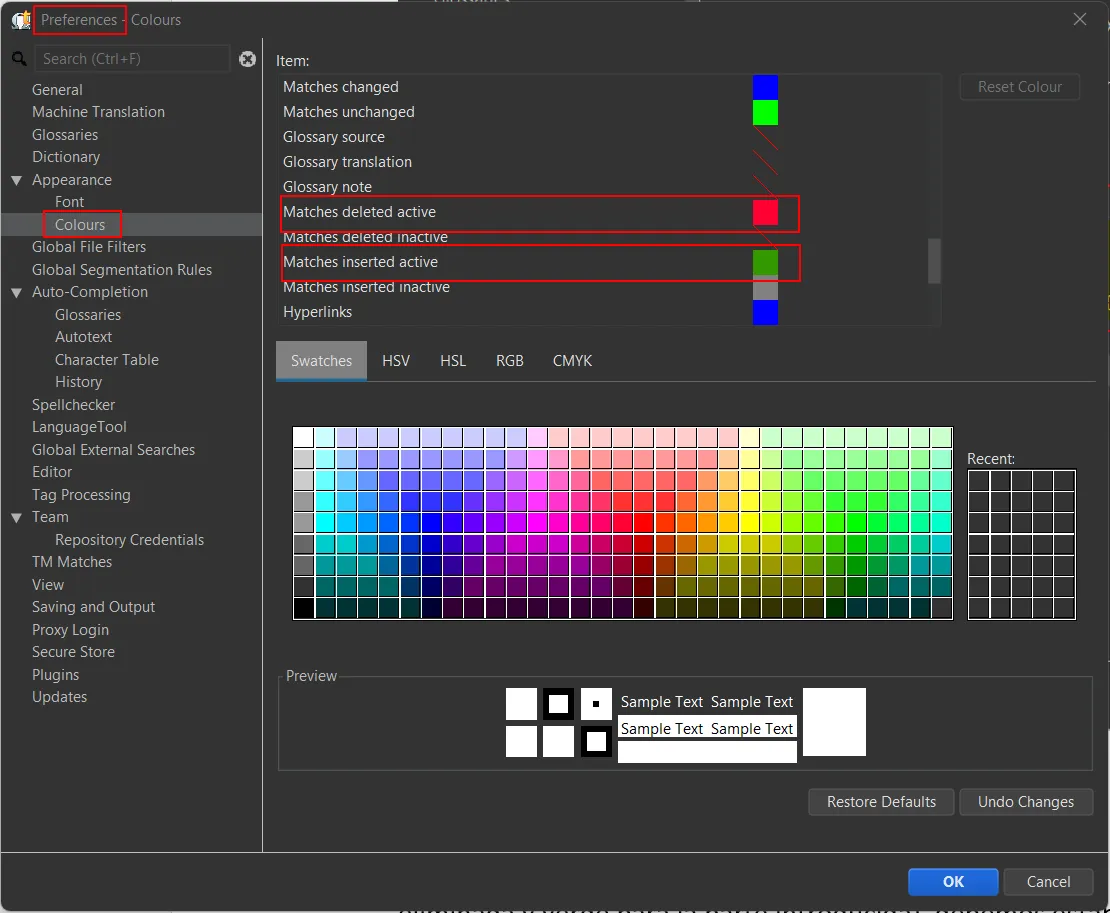
If you want the text insertions to be highlighted in green and deletions in red, you will need to adjust the palette in the color options:
4. Project Template Cloning
Unlike tools like memoQ, OmegaT relies on a 100% transparent project folder system.
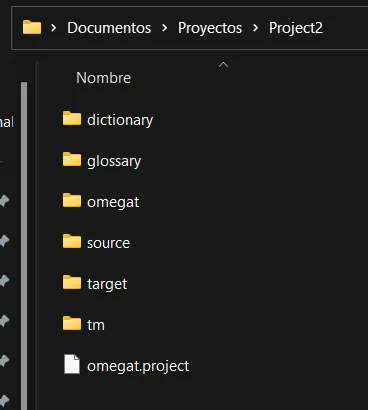
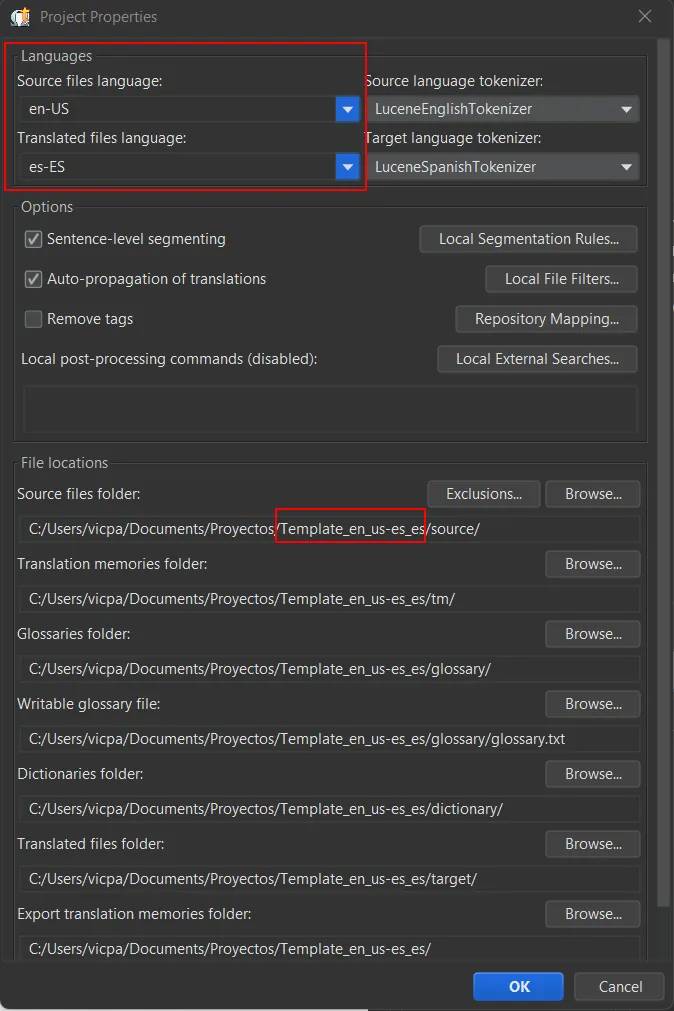
This makes creating “Templates” incredibly easy. Simply create an empty project, configure your segmentation rules and dictionaries for a specific client, save it, and then clone (copy-paste) that folder in your file explorer whenever you receive a new batch of files from that same client.
5. The Power of Plugins and Scripts
If OmegaT lacks a native feature, there is almost certainly a script or plugin that solves the problem.
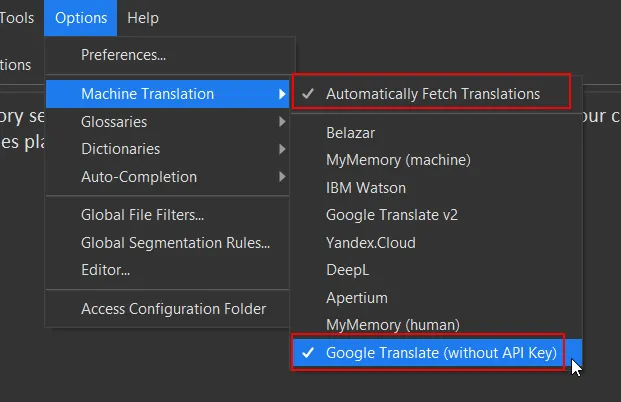
a) Machine Translation (No API Key Required)
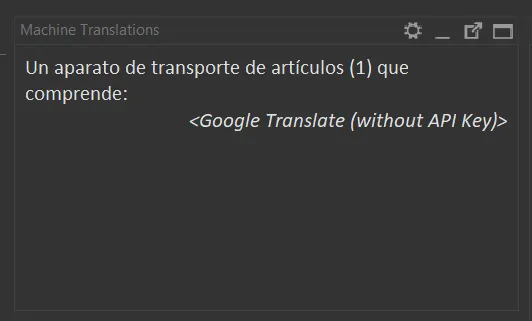
There is a fantastic plugin that natively integrates Google Translate without forcing you to pay or configure complex API keys. Just drop its .jar file into the /plugins folder and activate it in the menu.
b) Okapi Filters Plugin
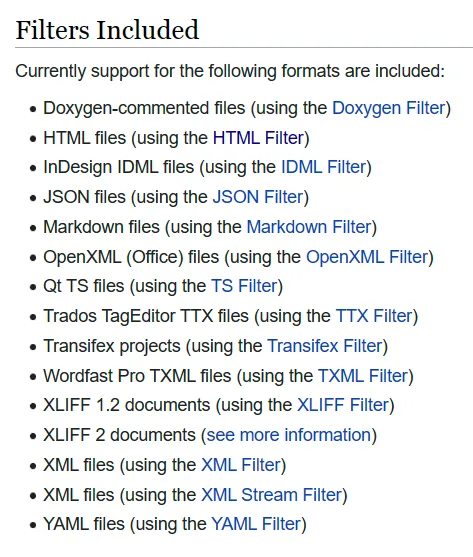
This is absolutely mandatory. By installing this plugin, OmegaT drastically expands its file compatibility, leveraging the raw parsing power of the Okapi Framework to handle complex proprietary formats.
c) Scripts: Extreme Automation
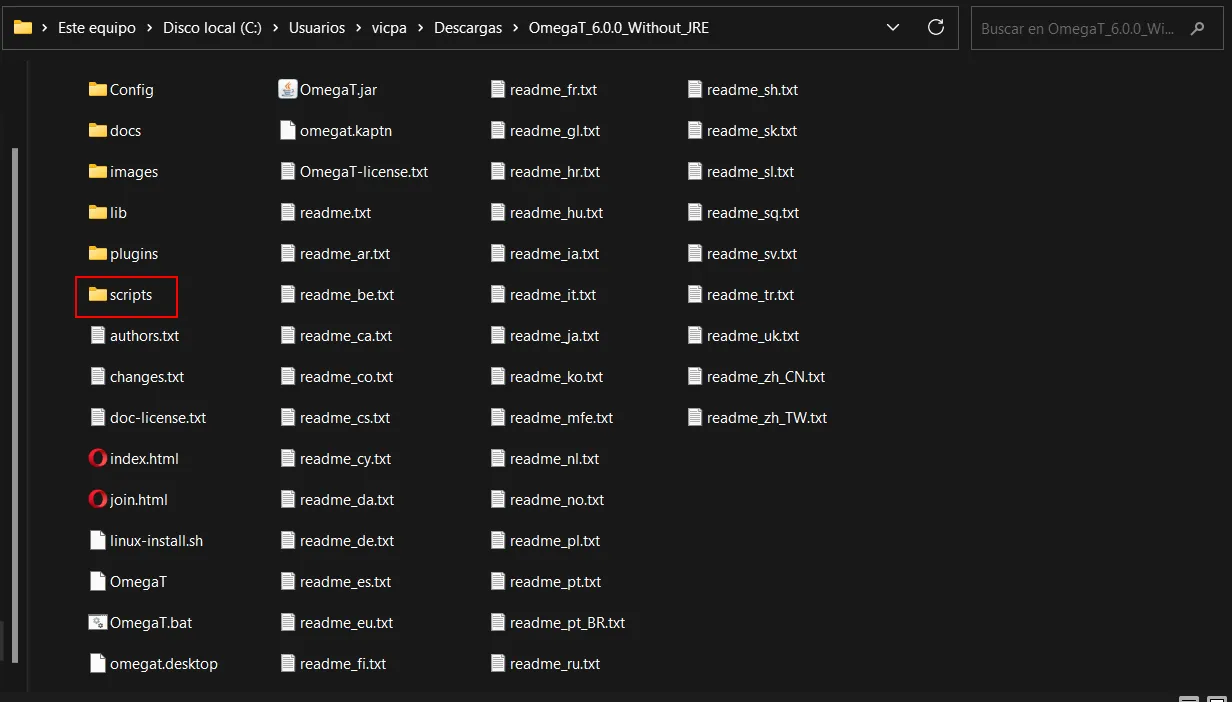
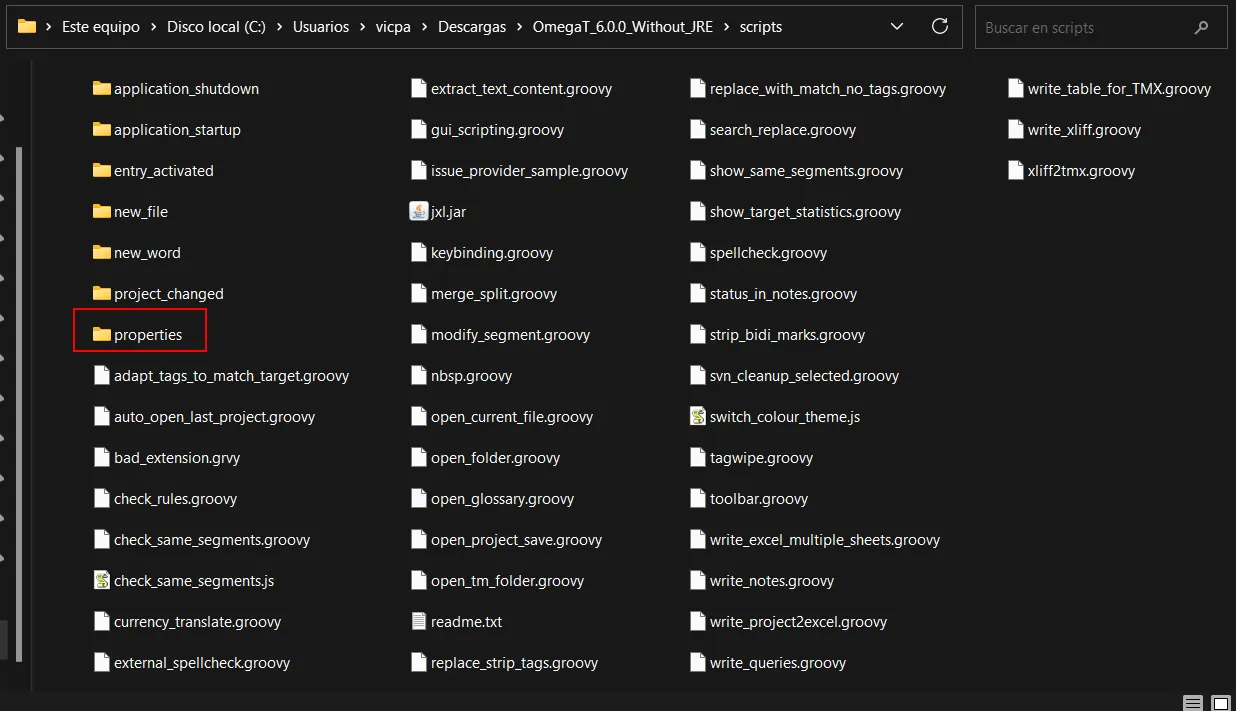
Scripts belong in the /scripts/ folder, and their dependencies in /scripts/properties/.
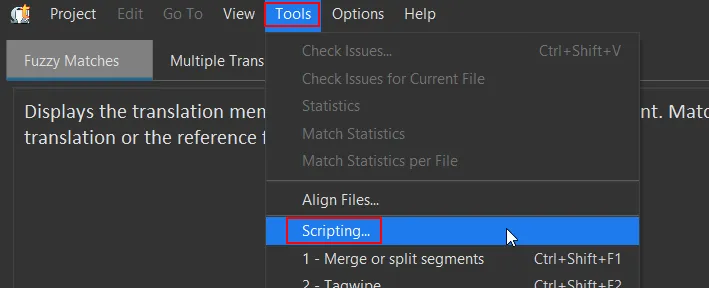
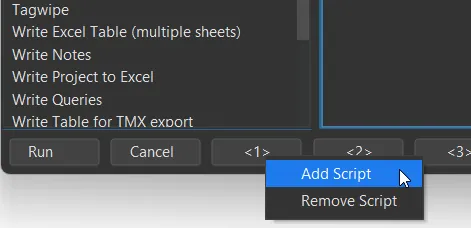
You can execute them and assign custom keyboard shortcuts via Tools > Scripting…
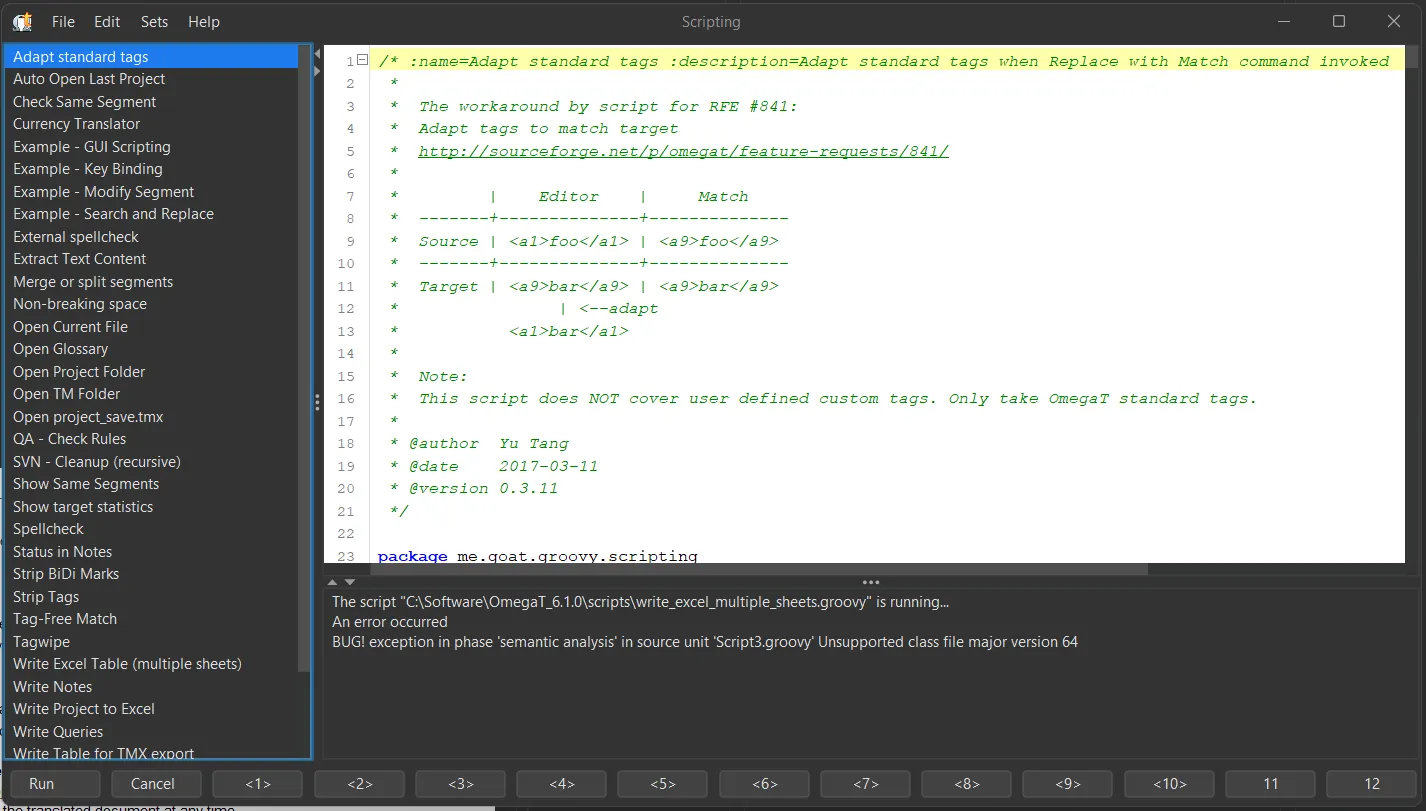
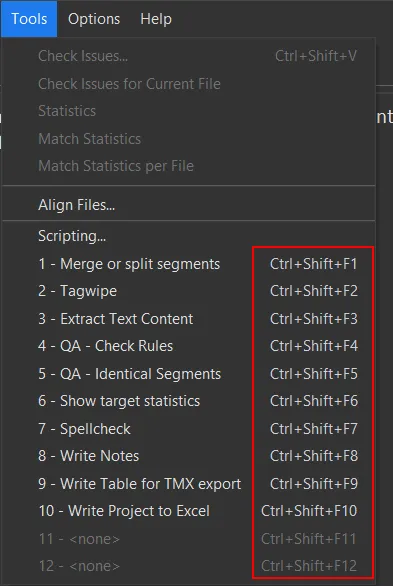
My two must-have scripts are:
- Merge and split segments: Essential for fixing segmentation errors on the fly.
- Export project to Excel: Generates an Excel spreadsheet containing your entire project. Perfect for external proofreading (you can easily reintegrate the reviewed file by converting it to a TM with Heartsome TMX Editor).
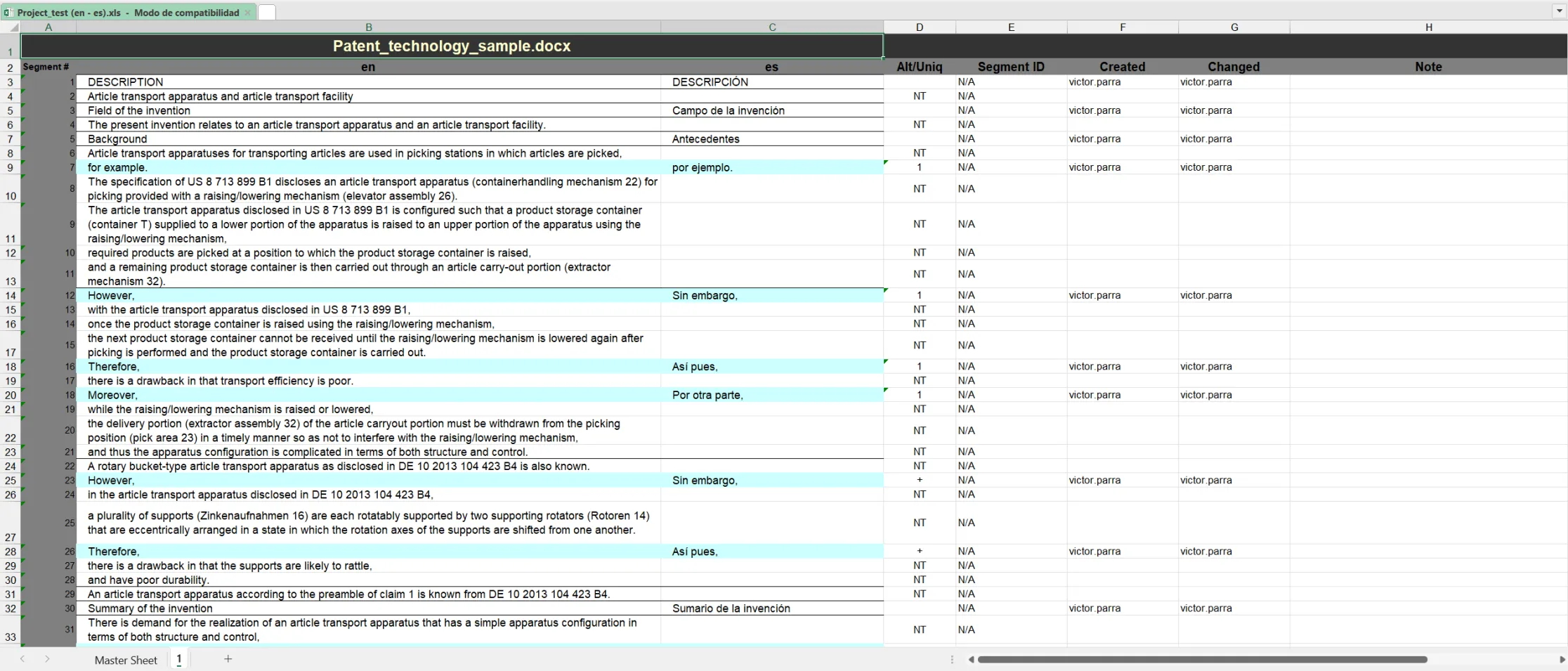
6. Mastering Non-translatables
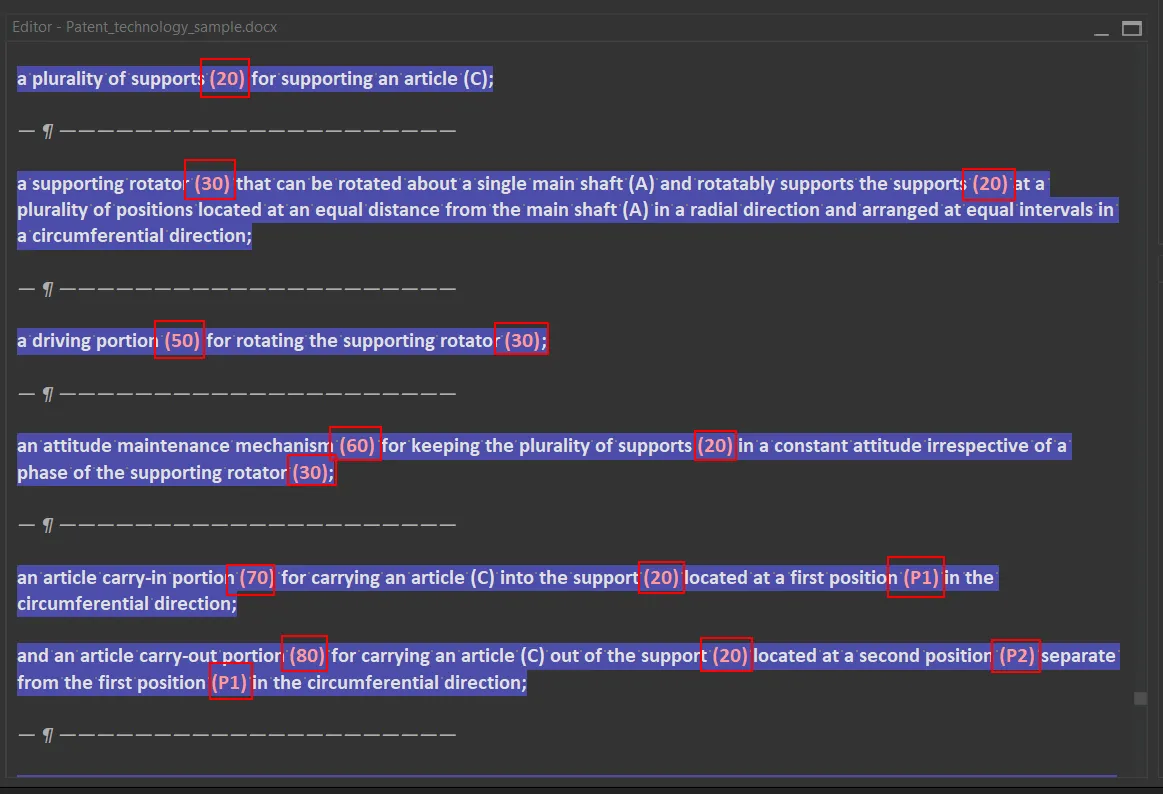
Borrowing one of memoQ’s best ideas, OmegaT allows you to define “Non-translatables” and treat them as structural tags. This grants you three superpowers:
-
They are highlighted in a different color to prevent accidental editing.
-
You can rapidly insert them using the
Ctrl+Tshortcut.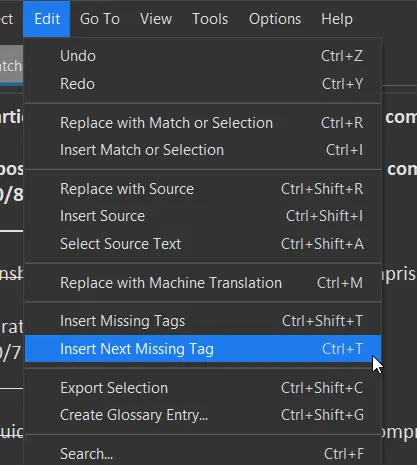
-
The QA checker will trigger a warning if you forget to include them in your translation.
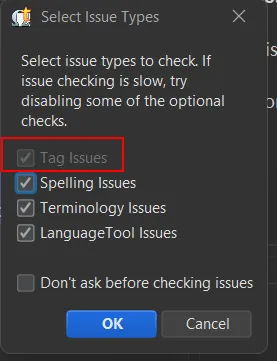
To configure them using Regular Expressions (Regex), go to Options > Preferences… > Tag Processing.
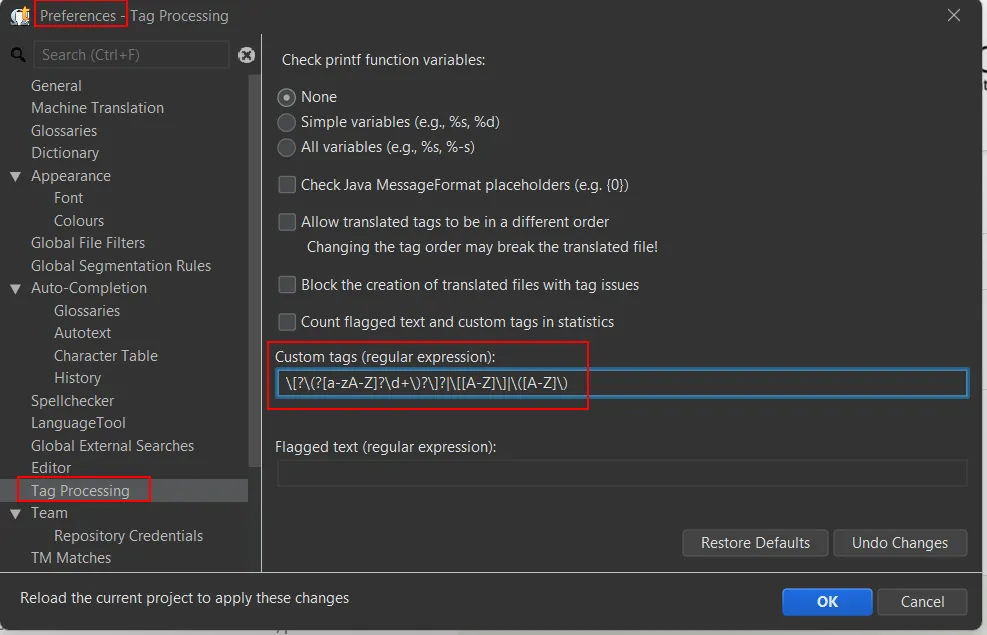
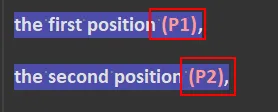
Here are some Regex examples I use to protect codes and parenthetical references:


7. Opening Proprietary Files from Other CAT Tools
Agencies will often send you packaged files exported from their proprietary tools (Wordfast’s TXLF, Phrase’s MXLIFF, memoQ’s MQXLIFF).
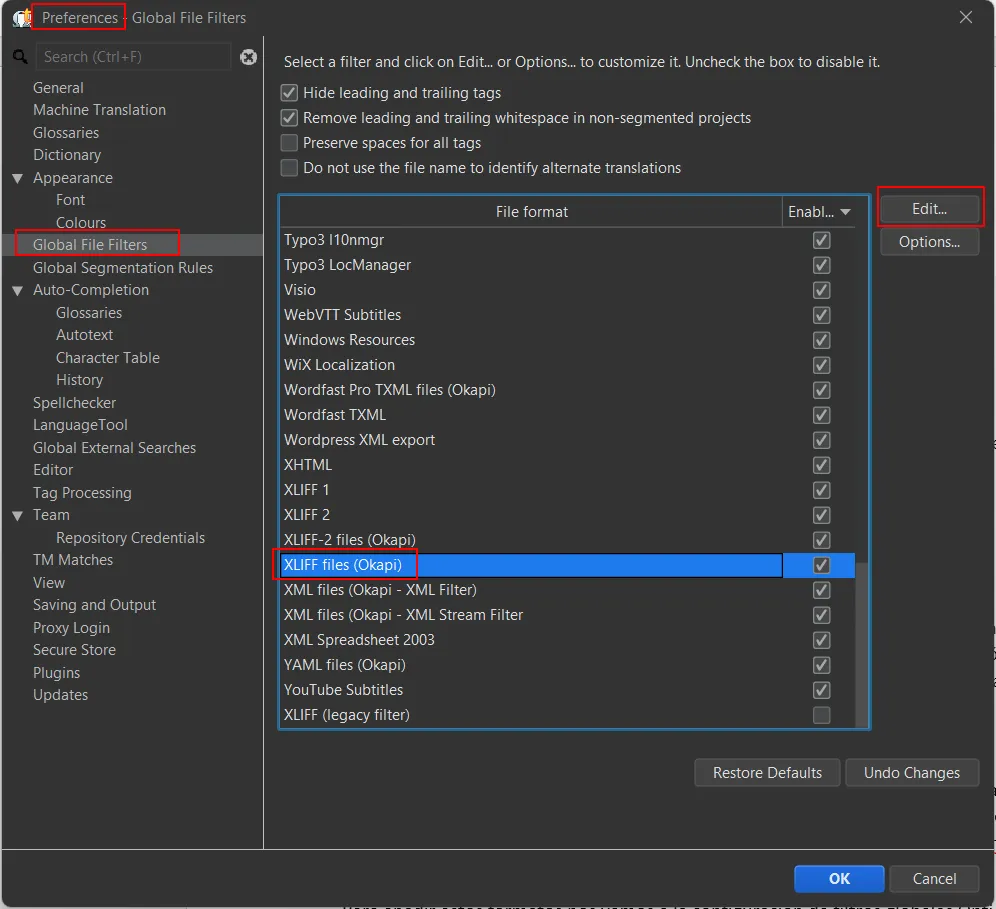
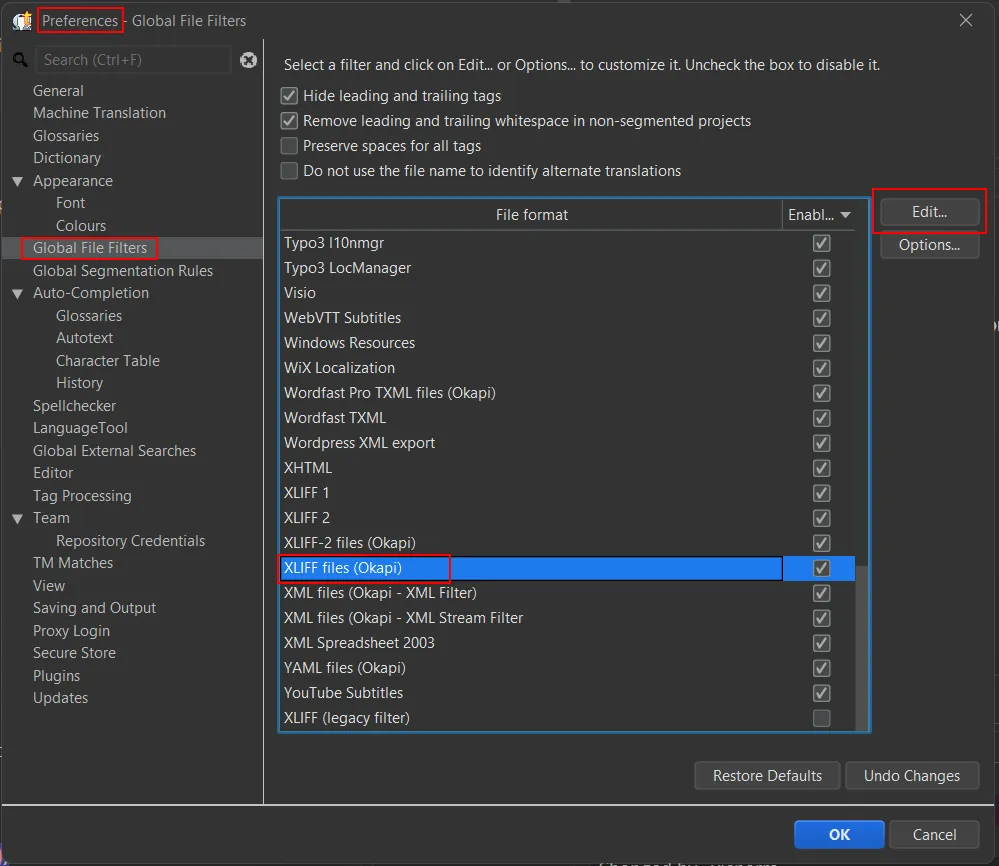
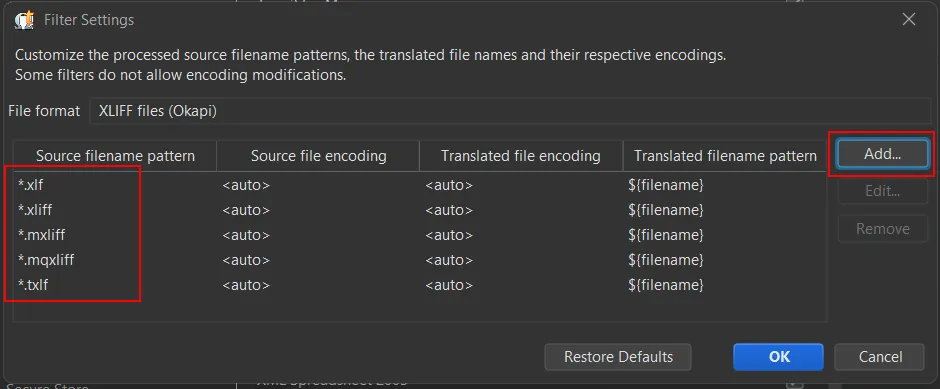
You can actually open them in OmegaT! Go to Options > Preferences… > Global File Filters, select the generic XLIFF filter, click Edit, and add these extensions to the pattern list:
With this setup, OmegaT evolves from a simple academic tool into a free, professional-grade workstation tailored entirely to your logical workflow. Long live Open Source!